Setting Up an iPhone for Travel and Roaming: How to Prepare and Connect to the Internet Abroad
This guide will help you quickly understand how to enable roaming on an iPhone, how to disable it, and where to find the required menu options. You will be able to configure internet access abroad without unnecessary expenses or errors. Summer is in full swing, and your flight from Moscow is coming soon. Review the checklist, prepare your eSIM, and keep control of your data usage from the first day.
What Roaming Is on iPhone and How Much It Costs
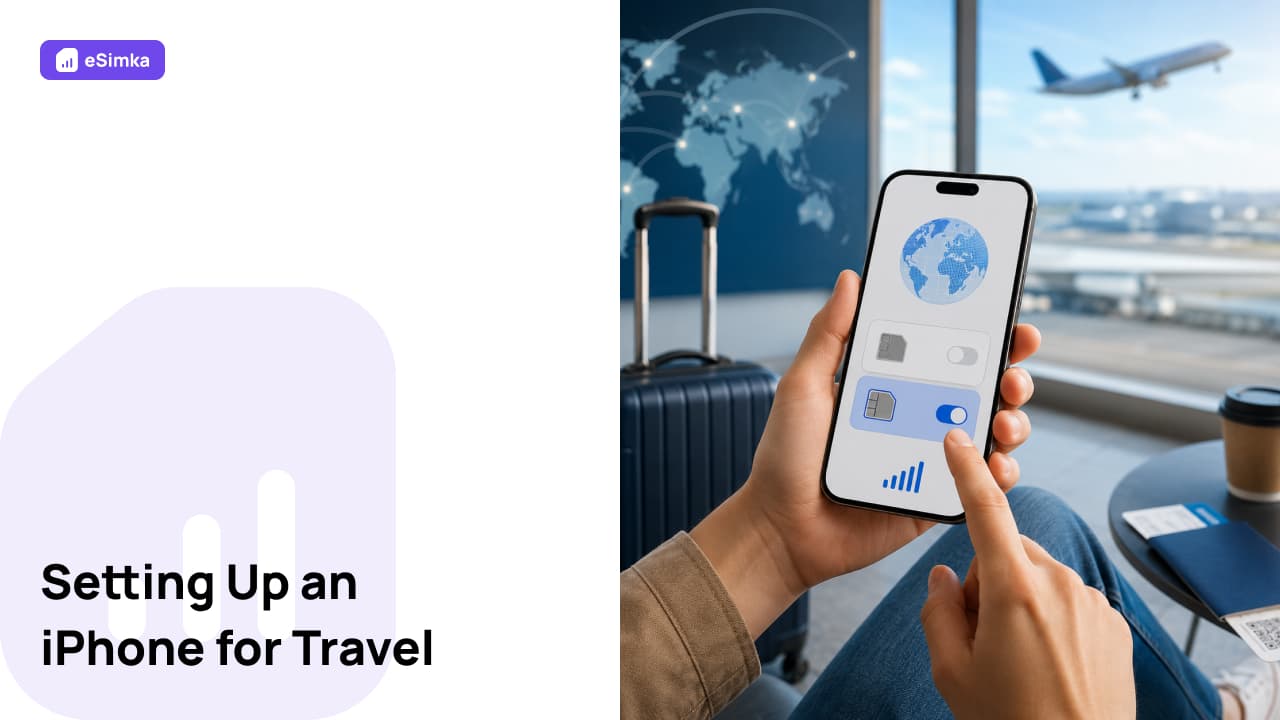
Roaming means using your mobile service outside your carrier’s home coverage area. The price varies depending on the country, your carrier’s package, and the selected option. There is no universal rate. For mobile internet while traveling, a prepaid eSIM data package is often more cost-effective. Check the available terms through the connection service and do not rely on automatically enabled options.
Costs are generated by mobile data, calls, and SMS messages. Rates vary by region. Speed and quality depend on the local network, congestion, and device model. Do not expect maximum performance everywhere—test the connection immediately after arrival and develop habits that help reduce data usage.
Preparing Your iPhone for a Trip Abroad
How to Prepare Your iPhone for a Trip Abroad: Pre-Flight Checklist
- Update iOS and the carrier settings under “Settings → General → About.”
- Check the carrier lock and eSIM support under “Settings → Cellular → eSIM.”
- Download offline maps, translations, and booking details. Enable offline access in map apps.
- Disable automatic media downloads in messaging apps. Restrict “Background App Refresh” under “General.”
- Find the IMEI and EID, as you may need them for eSIM setup. Check your Apple ID account and 3-D Secure.
How to Prepare Your iPhone in Advance in Case It Is Lost or Stolen
- Activate Find My, enable “Find My iPhone,” and turn on “Send Last Location.”
- Add emergency contacts to your Medical ID. Check “Emergency SOS.”
- Enable a passcode and Face ID. Require a password for purchases.
Ways to Stay Connected Abroad: Roaming, Local SIM/eSIM, and Wi-Fi
What an eSIM Is and Which iPhone Models Support It
An eSIM is a digital mobile profile that you add using the camera or an activation code. Most recent iPhone generations support this installation method. Check compatibility under “Settings → Cellular → Add eSIM.” It is convenient because no physical card is required, several profiles can be stored, and switching between them takes only a few seconds.
Where to Buy an eSIM for Travel
Choose a connection service with clear and transparent packages. Through “eSimka,” you select the destination country, receive instructions with a QR code, and add the profile through the “Add eSIM” menu. Activation times, data allowances, and conditions depend on the selected package, so check the current details before payment.
Why eSIM Is So Popular for Travel
The advantages are straightforward: predictable data usage, quick activation without visiting a mobile store, and the ability to keep your home number available for SMS. Internet access is provided through a local carrier, and you can track expenses in the app. If necessary, you can add another profile and switch the mobile data line.
How to Configure an iPhone for Internet Access While Roaming
How to Enable Roaming on an iPhone Abroad
- Open “Settings → Cellular → Cellular Data Options.”
- Enable “Data Roaming” for the active line.
- If you are using a travel eSIM, select it as the data line under “Cellular Data.”
This is also where you enable the option. If the menu items have different names, that is normal because the wording depends on the iOS version.
How to Enable International Roaming on an iPhone
Check that roaming services are enabled by your home carrier if you plan to use its SIM card. On the device, enable “Data Roaming” and “Voice Roaming” under “Cellular Data Options.” A local travel eSIM may also require Data Roaming to be enabled; otherwise, internet access will not appear.
How to Enable Roaming on iPhone 17 Pro Max
The path is the same: “Settings → Cellular → Cellular Data Options → Data Roaming.” You can also open “Voice & Data” and select 4G or 5G depending on local coverage. If the phone cannot connect to a network, check “Network Selection” and temporarily disable “Automatic” to search manually.
Where to Find Roaming Settings on iPhone 17 Pro Max
They are located under “Cellular.” Open “Cellular Data Options,” enable the required switches, and then select the internet line under “Cellular Data.” When using Dual SIM, carefully assign the primary data profile.
How to Disable Roaming Data on iPhone 17 Pro Max
Open “Cellular Data Options” and disable “Data Roaming.” To completely block mobile traffic, disable “Cellular Data” in the main Cellular section. This is useful near borders, where background processes may otherwise consume mobile data.
Configuring APN, 4G/5G, and Low Data Mode
APN details are entered under “Settings → Cellular → Cellular Data Network.” The required settings are provided in the profile instructions. Enable “Low Data Mode” under “Cellular Data Options” to reduce background activity. Select the network type under “Voice & Data” according to the available coverage.
How to Select a Network Manually
Open “Settings → Cellular → Network Selection.” Disable “Automatic” and select a suitable carrier. If several devices are available nearby, test different networks and restore automatic selection after connecting successfully.
Dual SIM and eSIM: Selecting Lines for Data, Calls, and SMS
How to Add an eSIM and Switch Between Profiles
- Open “Settings → Cellular → Add eSIM” and scan the QR code from the email.
- Name the profiles “Home” and “Travel” to make them easier to identify.
- Under “Cellular Data,” select the eSIM for internet access abroad. Keep the home line available for calls and SMS if necessary.
Calls and Messages While Roaming
How to Make Calls While Roaming
Dial numbers in international format, such as +7 for Russia. To save money, make calls through messaging apps over Wi-Fi. Keep in mind that voice calls through the mobile network may be charged separately from internet data.
VoLTE/VoWi-Fi, iMessage, and FaceTime Abroad
Check VoLTE and VoWi-Fi under “Cellular → Cellular Data Options → Voice & Data.” iMessage and FaceTime are enabled under “Messages” and “FaceTime.” Activating these services may send an international SMS, which some carriers charge for.
How to Configure Call Forwarding While Roaming
Open “Settings → Phone → Call Forwarding” and enter the required number. Check the forwarding rates to avoid unnecessary charges. Make a test call to confirm that the forwarding route works correctly.
Managing Roaming Costs and Services
How to Enable or Disable Roaming Services
Services are managed through your carrier’s app or account dashboard. On the device, you can control “Data Roaming,” “Wi-Fi Assist,” and “Low Data Mode.” Monitor notifications about mobile data usage.
How to Check Your Balance While Roaming
Check your balance through the carrier’s app or using a USSD command. For a prepaid eSIM, view the remaining data in the connection service account. Record the package activation date.
Tips for Reducing Costs and Data Usage
- Enable “Low Data Mode” and disable background app refresh.
- Disable automatic media downloads in messaging apps. Restrict iCloud Drive over mobile data.
- Use offline maps and cached content in apps.
Troubleshooting: Slow Internet, No Network, or Calls Not Working
Mobile Internet Is Slow on iPhone: What to Do
Switch between 5G and 4G under “Voice & Data,” enable and disable Airplane Mode, and test another network manually. Move to an area with a stronger signal. Compare the result with Wi-Fi speed to identify possible local network restrictions.
No Internet While Roaming: Step-by-Step Troubleshooting
- Make sure the eSIM profile is enabled and selected for mobile data.
- Enable “Data Roaming” for the active line.
- Check the APN according to the package instructions.
- Switch “Network Selection” from automatic to manual and back.
- Restart the device.
Resetting Network Settings and Updating Carrier Settings
If the problem continues, perform a network reset under “General → Transfer or Reset iPhone → Reset.” Then check for a carrier settings update under “About.” Contact the eSIM service support team if necessary.
Security and Emergencies
What to Do If Your iPhone Is Lost While Roaming
Sign in to iCloud on another device, enable Lost Mode in Find My, change your passwords, and block the SIM profiles. Contact support to stop further data usage.
Emergency Calls, SOS, and Public Wi-Fi Security
Emergency SOS is available without an active plan in most countries. Avoid making payments over public Wi-Fi and use a VPN where possible. Disable automatic connections to unfamiliar networks.
Useful Apps and Offline Settings for a Holiday
Maps, Translators, Wallets, and Bookings
Download offline maps, install a translation app with offline language packs, and save tickets in Wallet. Check that you can access your email without SMS and configure backup codes for two-factor authentication.
Going on Holiday: Which Apps to Download and What to Configure
Prepare taxi apps, messaging apps, hotel booking services, and navigation tools. Restrict automatic photo synchronization. Enable data usage reports under “Cellular Data” to see how much each app consumes.
Pre-Flight Reminder: Quick Checklist
- Add an eSIM from “eSimka,” check the QR code, and confirm that the profile is active.
- Enable “Data Roaming” in advance for the selected line.
- Download offline maps and tickets, and check 3-D Secure.
- Assign separate lines for internet access and calls.
- After landing, restart the device and test the connection speed.
FAQ
Roaming: Should You Use It or Not?
If you need predictable expenses, choose an eSIM with a fixed data allowance. Home carrier roaming is convenient for occasional incoming calls but may be more expensive than eSIM internet. The optimal setup is often an eSIM for data and your home number for SMS.
Where Can I Enable Roaming Settings on an iPhone?
Open “Settings → Cellular → Cellular Data Options” and enable “Data Roaming.” You can also select the network type there and enable “Voice Roaming” if necessary. Assign the required internet line under “Cellular Data.”
How Can I Disable Roaming on an iPhone to Prevent Charges?
Disable “Data Roaming” and, if necessary, “Cellular Data.” Also check iMessage and FaceTime, as their activation may send paid SMS messages. Near a border, use Airplane Mode until you have selected the correct profile.
Do I Need to Enable Mobile Data for an eSIM Abroad?
Yes. Enable “Data Roaming” for the travel profile and select it as the internet line. Without this, the device will not connect to the network. Check the APN according to the package instructions.
When Does the eSIM Plan Validity Period Begin?
Most often, it begins when the profile is activated or when it first connects to a network in the destination country. Check the package instructions. Add the profile one day before departure and activate it after arrival.
Can I Keep My Primary SIM for Calls and SMS?
Yes. Assign the home line to calls and messages and the eSIM to mobile data. Monitor “Voice Roaming” and check the rates for incoming and outgoing calls.
The conclusion is simple: you now know how to enable roaming on an iPhone, how to disable it, and what steps to take before departure and after landing. Choose a travel eSIM through “eSimka,” connect a package for your route, and keep your internet usage under control.