How to Install an eSIM on Samsung Galaxy Watch in 2026: A Travel Guide
Having internet access directly on your watch lets you head out without your smartphone. Setting up an eSIM on a Samsung watch requires only a smartphone and an active digital profile.
Which Samsung Galaxy Watch Models Support eSIM and LTE Networks?
Compatible Galaxy Watch 4, Watch 5, Watch 6, Watch 7, and Ultra Models
A cellular module is available only in watch versions marked LTE. The Galaxy Watch 4, later series, and Ultra version support downloading cellular profiles only when they have a built-in modem. Standard Bluetooth and Wi-Fi models do not have a slot for physical SIM cards, so they cannot connect directly to a mobile network.
How to Check for an LTE Module in the Watch Settings and Model Number
Open the watch settings, go to the device information section, and find the exact model number. The letters F or U in the model code indicate that the watch has an LTE modem inside. The mobile networks option in the connection settings confirms that you can set up an eSIM on the smartwatch without unnecessary complications.
Choosing and Buying an International eSIM Plan for a Smartwatch
How Travel Internet Works on Wearable Devices
Smartwatches use less data than smartphones. You do not need a large data allowance for maps, incoming messages, and occasional calls. International carriers often restrict connections when watches are away from the phone, so a separate travel plan is a more reliable choice for trips.
How to Get a QR Code and Activation Details Through the eSimka Service
You do not need a passport to make a purchase: you can get a suitable eSIM plan through eSimka in just a couple of minutes. Simply specify your destination country and pay with a Russian bank card, and an email containing the required code will arrive in your inbox. The internet connection will start working as soon as the selected plan is downloaded to the watch.
Preparing for Installation: What to Check Before Connecting
Updating the Galaxy Wearable App and Pairing Your Smartphone
First, check your smartphone's connection: you will not be able to sync the watch without a reliable Wi-Fi or cellular connection. Install the latest version of Galaxy Wearable from the app store, then pair the watch with your smartphone via Bluetooth.
Connecting the Watch to Third-Party Android Smartphones
If your Samsung watch is paired with a smartphone from another brand, you will first need to sign in to your Samsung account. Some third-party firmware blocks scanning windows, so allow the app to access the camera in your system settings.
Step-by-Step Guide to Installing an eSIM on a Samsung Watch
Before setting up an eSIM on your Samsung watch, place both devices close to each other and display the code on a tablet or laptop.
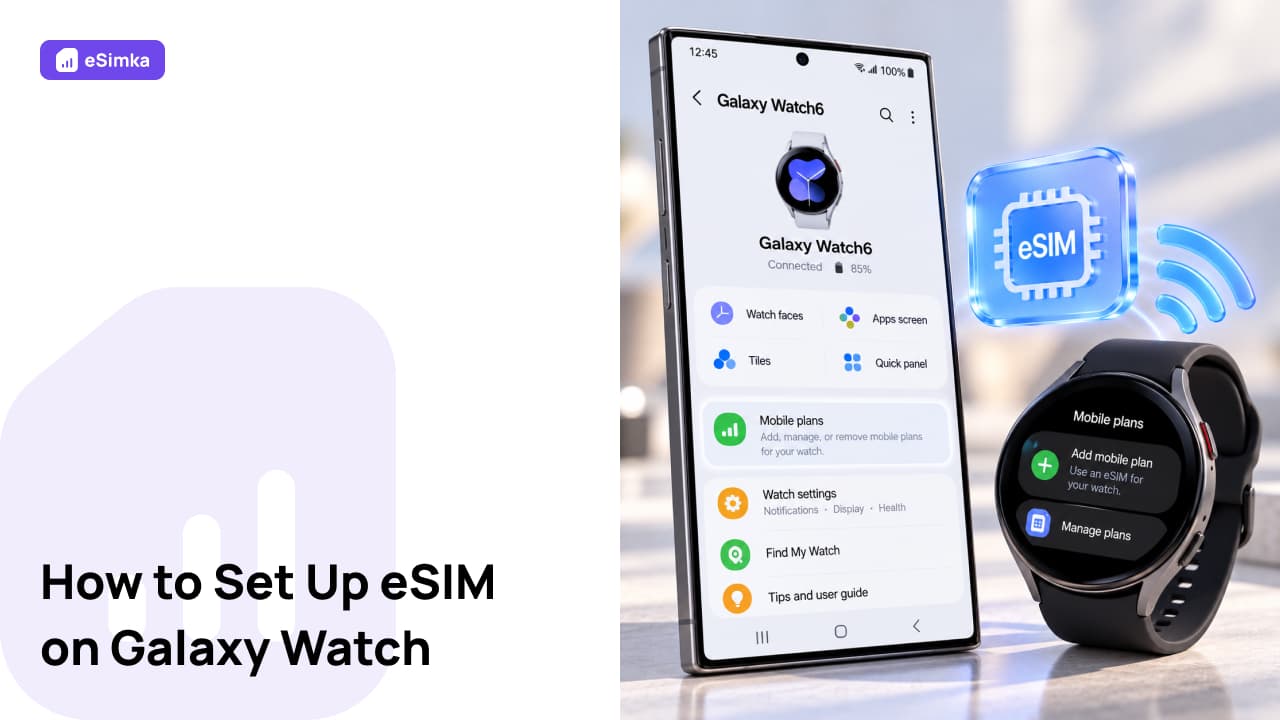
- Open Galaxy Wearable on your smartphone.
- Go to the watch settings and select the mobile plans option.
- Open network search and proceed to add a plan using a barcode.
- Scan the QR code you received with the camera or enter the server details manually.
- Confirm the download and wait for the settings to finish transferring.
Instruction 1. Scanning the QR Code Through the Mobile Section in Galaxy Wearable
The main setup is performed directly in the app using its standard features. Tap the option to add a mobile plan and scan the QR code—the profile will be installed automatically.
Instruction 2. Manually Entering the SM-DP+ Address and Activation Code
If the camera cannot scan the image, enter the connection details manually. Find the SM-DP+ server details and activation code in the email from eSimka, enter them in the form, and confirm submission.
Instruction 3. Setting Up an Independent Profile Without Linking It to the Smartphone's Plan
When traveling abroad, it is useful to know how to set up an eSIM on a Galaxy Watch Ultra or standard models without duplicating your smartphone's primary number. Simply decline the option to duplicate your phone number and connect a separate roaming plan.
Setting Up Data Roaming and Cellular Connectivity Abroad
Enabling Data Roaming and Choosing a Mobile Carrier
After landing, open the watch's cellular settings and allow data roaming. Leave network selection on automatic: the watch will find a local carrier's base station on its own.
Using Galaxy Watch Without a Phone: Navigation, Messaging, and Calls
As soon as the Bluetooth connection drops, the watch will automatically switch to the cellular network through its LTE modem. You can safely leave your smartphone at the hotel: maps, messaging apps, and incoming calls will remain available on your wrist.
What to Do If Activation Fails or the Cellular Network Stops Working
Galaxy Wearable Does Not Recognize the Plan or QR Code
Increase the brightness of the screen displaying the code and clean your phone's camera lens. If the problem persists, restart both the smartphone and the watch, then try again using a reliable Wi-Fi connection without a VPN or third-party proxies.
The Watch Cannot Connect to a Local Mobile Network in Another Country
Restart the watch, turn on Airplane mode for about 15 seconds, and check whether data roaming is enabled. Still no connection? Open the connection menu and select the required carrier manually.
Frequently Asked Questions (FAQ)
Can You Use the Same eSIM on Both a Watch and a Smartphone?
You cannot activate the same QR code on two different devices at the same time. The watch needs its own profile with a separate mobile data plan.
Can You Use an eSIM on a Watch If It Is Not Connected to a Phone?
Yes, the built-in modem can connect to the network independently, even when the smartphone is switched off.
How Many eSIMs Can You Add to a Galaxy Watch?
The device can store several digital SIM profiles, but only one mobile plan can be used for data at a time.
How Much Does Battery Consumption Increase When Using a Smartwatch on a Cellular Network?
Staying constantly connected to cellular towers drains the battery approximately one and a half to two times faster than using Bluetooth.
Does Removing a Mobile Plan from the Watch Cancel the Carrier Plan?
Removing a profile from the watch's memory deletes only the local connection settings. Your paid data allowance does not disappear and remains associated with your account.
Can You Temporarily Disable an eSIM on a Watch, and How Do You Do It?
To save battery power, go to the watch's mobile connection settings and turn off the cellular modem.