How to Set Up eSIM on Apple Watch in 2026: Travel Guide
Smartwatches with cellular connectivity let you stay connected while running, sightseeing, and traveling without keeping your smartphone in your pocket. Let’s look at the technical details, standalone capabilities, and the steps that will help you understand how to add an eSIM to Apple Watch for international travel.
Checking Apple Watch eSIM Compatibility Before Your Trip
Not every Apple wearable can connect to cellular towers independently. Before purchasing a plan or traveling, make sure to check your device’s hardware specifications.
Differences Between GPS and GPS + Cellular Versions
The basic Apple Watch GPS version can make calls and load data only through Bluetooth or Wi-Fi when your iPhone is nearby. The GPS + Cellular version has a built-in radio module and eSIM chip. You can easily identify this version visually by the red stripe or red ring on the Digital Crown. If there is no ring, the device does not have a built-in SIM for Apple Watch, and you will not be able to add a cellular plan directly to the watch.
Apple Watch Models with Cellular Support from Series and SE to Ultra
The manufacturer installs a built-in cellular module in Apple Watch Series models starting with Series 3, across all Apple Watch SE generations, and in Apple Watch Ultra. Every Apple Watch Ultra model is initially released exclusively as a Cellular version with a titanium case. The budget SE series and flagship Series lineup offer a choice between a GPS-only version and a GPS + Cellular configuration. If the watch supports cellular connectivity, the corresponding marking will be engraved on the back around the sensors.
Carrier and watchOS Version Requirements
The watch will not connect to a network if the mobile carrier does not support the required profile technology. Make sure the watch is running the latest available watchOS and that the paired phone has an up-to-date version of iOS. The carrier must provide a shared-number option so that the smartphone profile can be duplicated on the watch. If the carrier does not support this feature, you will not be able to set up an eSIM on Apple Watch using the standard method.
How Cellular Connectivity and Roaming Work on Apple Watch Abroad
How a smartwatch behaves abroad depends on the type of profile and the communication architecture between the devices. Since the watch was designed as a companion to a smartphone, its operation on foreign networks has several limitations.
International Roaming on Smartwatches
International roaming is available on Series 5 and newer watches running watchOS 9.1 or later. For connectivity, the device uses the same LTE and UMTS frequency bands as the main phone. When the home carrier allows roaming for a paired watch, it will automatically find a local network while traveling. Carriers often charge calls and mobile data abroad according to separate rates, so it is worth checking your balance in advance.
Using eSIM Travel Profiles for Mobile Data
While traveling, the smartphone handles practically all of the internet traffic. Through the eSIM service, you can purchase a travel data package for 150+ countries without visiting a mobile carrier store. You download the eSIM profile to your phone and pay for it with a Russian card, while the watch connects to the internet through the smartphone via Bluetooth and Wi-Fi. This eliminates overpaying for roaming on your home number and allows you to use cellular messenger features on the watch without additional costs.
Standalone Watch Use While Traveling with Family Setup
Family Setup allows you to configure the watch as an independent device with its own number, even if the owner does not have an iPhone. In this case, cellular connectivity works independently through a separate cellular profile. To use an eSIM for Apple Watch in this mode, find a carrier that offers plans for children’s or family watches. This option is convenient when you give the watch to a child during walks around the city.
Step-by-Step Guide: How to Add an eSIM to Apple Watch
The cellular connection itself is set up through a mobile app on the paired smartphone. With a stable internet connection, the entire process takes about three minutes.
Preparing Your iPhone and Smartwatch for Profile Installation
Before you start, check the pairing: the batteries should be charged to at least 50%, and the devices should be connected to reliable Wi-Fi. Also make sure Bluetooth is enabled on the watch. The main cellular plan on the smartphone must be active, and there must be no device-linking restrictions in the carrier account.
Connecting a Cellular Plan Through the Watch App on iPhone
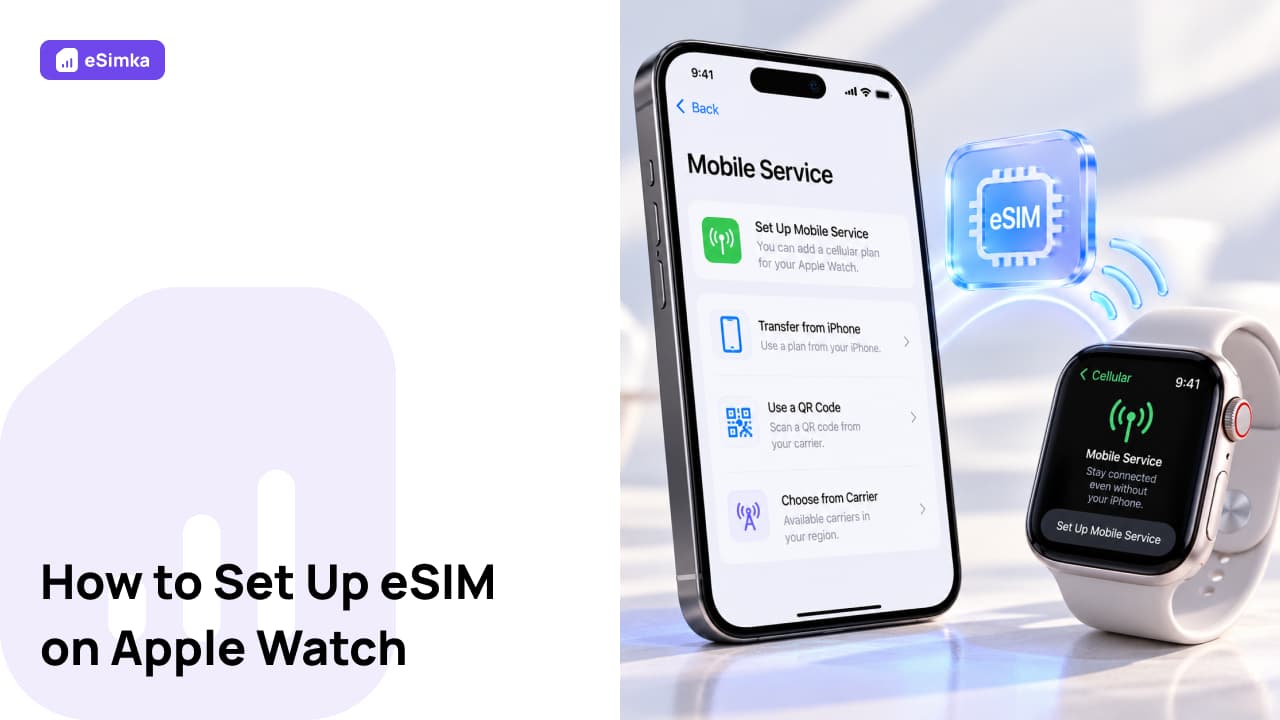
Take your iPhone and open the Apple Watch app. Open the “My Watch” tab, select “Cellular,” and tap “Set Up Cellular” to complete the setup. The smartphone will automatically redirect you to the carrier’s authorization page. Enter your carrier account credentials, confirm your login with the code sent by SMS, and accept the terms.
Activating the Plan and Setting Up Data Roaming on the Watch
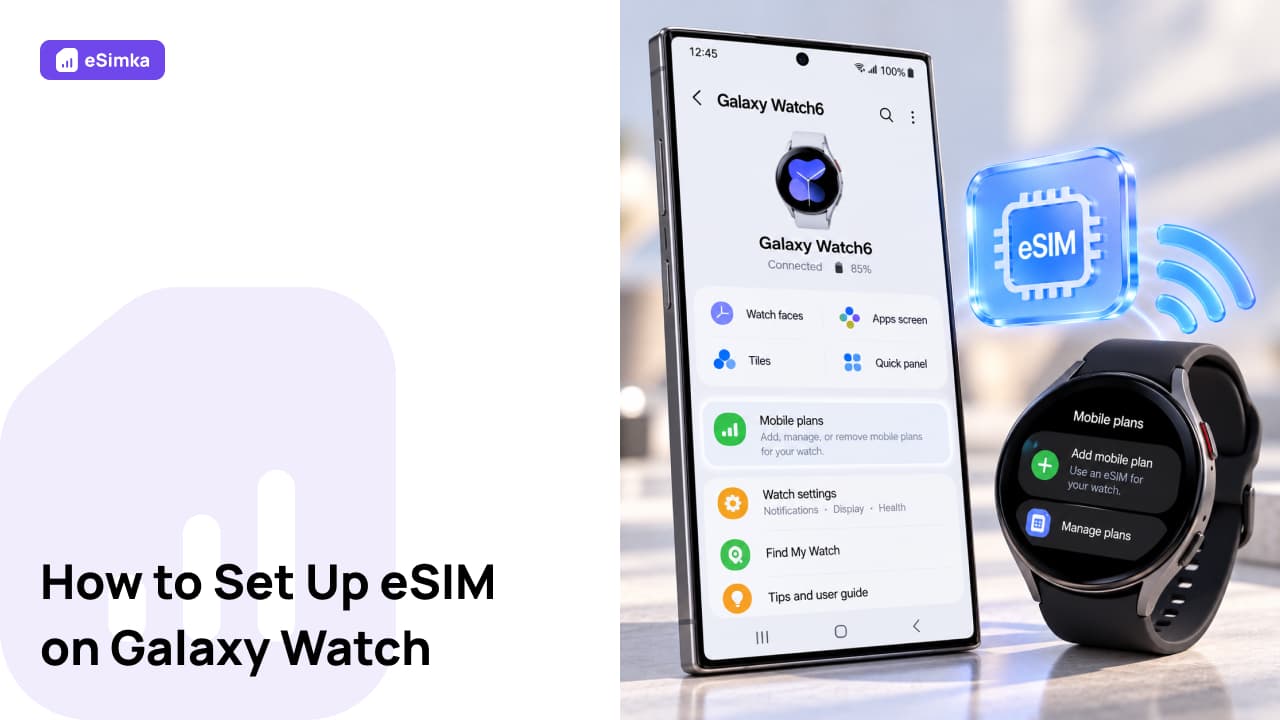
Immediately after confirmation, the profile will begin downloading to the watch’s memory. The cellular plan status in the app will change to Enabled. Now open the settings menu on the watch itself, go to Cellular, and check the Data Roaming switch if you are abroad. Now you know the basic process for how to install an eSIM on Apple Watch in just a few steps.
Cellular Connectivity Features Across Different Apple Watch Generations
Antennas and radio modules differ in layout and power consumption across watch lines, which affects signal reception stability.
Activating eSIM on Apple Watch Series 10 and Later
New Apple Watch models feature optimized antenna arrays that acquire a signal faster in dense urban areas. The profile-addition process is also faster thanks to the new processor. To activate an eSIM on the latest Apple Watch series, simply open the app on your phone and follow the standard setup wizard. Network registration is noticeably faster here compared with older generations.
Setting Up the Cellular Module on Apple Watch Ultra
The Ultra line has a titanium case, while the antennas are integrated into a special bezel around the sapphire glass. This provides stronger signal reception in the mountains or far from base stations. Linking a plan to Apple Watch Ultra is no different from the classic versions, but the higher-capacity battery allows the watch to operate in standalone cellular mode for more than a day without recharging.
Setting Up an Electronic Profile on Apple Watch SE
The second-generation SE line retained all the necessary frequency bands for working with most LTE networks worldwide. Installing a profile on SE devices follows the standard process through the Cellular menu. SE models are well suited to the Family Setup scenario, when the watch is used by a child without their own smartphone.
What to Do If eSIM Does Not Work on Apple Watch
Sometimes, during the initial setup or after changing the time zone, the cellular module loses its connection to the base station. Most issues can be resolved by performing basic settings checks.
The Watch Cannot Find a Cellular Network or Show a Signal
If the connection indicator in Control Center is white or gray instead of green, the watch is not registered on the network. Check Airplane Mode: turn it on for 10 seconds and then turn it off again. If that does not help, restart the watch by holding the side button for a long time. Make sure you are outside the phone’s Wi-Fi and Bluetooth range; otherwise, the watch intentionally disables its cellular chip to save battery.
Message Saying That the Carrier or Plan Is Not Supported
This error appears if your carrier is not certified by Apple to work with the watch. In this case, you will not be able to add a local cellular number. The solution is to share traffic from a smartphone with an eSIM travel internet package installed. The phone will act as the connection point, while the watch will gain access to all network functions.
Issues with Call and Notification Synchronization with iPhone
If the internet works on the watch but incoming calls do not arrive, check the Apple ID status. The same iCloud account must be used on both devices. Go to the Messages and Phone menus in the smartphone settings and make sure the Calls on Other Devices option is enabled.
Tips for Saving Battery Power and Data While Roaming
The built-in transmitter consumes a lot of power when the watch is far from the smartphone. A few simple adjustments can help preserve battery power until the end of the day.
Optimizing Background App Refresh on the Watch
Constant background data exchange quickly drains the small battery. Go to Settings on the watch, open “General” → “Background App Refresh,” and disable background activity for apps you do not need while traveling. Keep only navigation, messengers, and system services active.
Managing Cellular Data During Flights and Sightseeing
During long trips and sightseeing, disable cellular network searching on the watch if your phone is nearby in your backpack. The watch will receive the necessary information over Bluetooth with minimal battery consumption. Turn on the cellular transmitter on the watch only when you go swimming or intentionally leave your phone at the hotel.
Frequently Asked Questions (FAQ)
Will Apple Watch Have a Separate Phone Number When Connected to an eSIM?
With standard setup, the watch uses the same phone number as the smartphone. Calls and SMS messages arrive on both devices simultaneously. A separate number is assigned only when the watch is configured through Family Setup for a family member.
Can I Use Apple Watch with Cellular Connectivity in Any Country?
Cellular connectivity abroad works only if the model supports the local LTE frequencies and the carrier provides international roaming for the watch. Watches intended for the North American market use different frequencies and may not connect to networks in Europe and Asia.
Can I Use an eSIM on the Watch Only for Internet Access While Keeping Calls on the iPhone Number?
Apple initially links the watch profile to the phone’s voice plan. If you only need data while traveling, it is easier to connect an eSIM package on the smartphone. The watch will access the network through the phone’s secure connection without complicated cellular-plan settings on the watch itself.
Does the Cellular Module Drain the Apple Watch Battery Faster?
Yes, the standalone cellular module drains the battery approximately three times faster than a Bluetooth connection. With continuous calls and data transmission, the base model’s battery lasts for 3–5 hours of cellular use, while Ultra lasts significantly longer.
Can Apple Watch with eSIM Be Used as a Mobile Hotspot for Sharing Internet?
Apple developers did not provide a hotspot function in watchOS. The watch only receives and processes traffic for its own services and cannot share internet over Wi-Fi with other devices.
Is a Separate Cellular Plan Required for Cellular Apple Watch?
Most carriers charge a small monthly subscription fee for duplicating the number on the watch. Data and the included minutes are then deducted from your main cellular plan linked to the smartphone.
Is Personal Data Safe When Using an eSIM Profile on Apple Watch?
The profile is encrypted in the Secure Enclave hardware module directly inside the device. The card cannot be removed or the data intercepted, and if the watch is lost, the cellular profile can be blocked immediately through Find My.
Can I Change Carriers Without Pairing the Watch Again?
No. When switching to another carrier on the smartphone, the old cellular profile on the watch stops working. You will need to remove the previous plan through the Watch app and activate cellular service again with the new carrier.