Nano-SIM or Digital SIM: Choosing and Setting Up Mobile Internet Abroad in 2026
Without a stable connection while traveling, everyday tasks become difficult: you cannot call a taxi, open a map, or confirm a bank transfer. That is why travelers have to compare a traditional physical SIM with a digital plan, considering both the price per gigabyte and the complexity of setup.
What Is the Nano-SIM Format and What Are the Standards for Modern Chips?
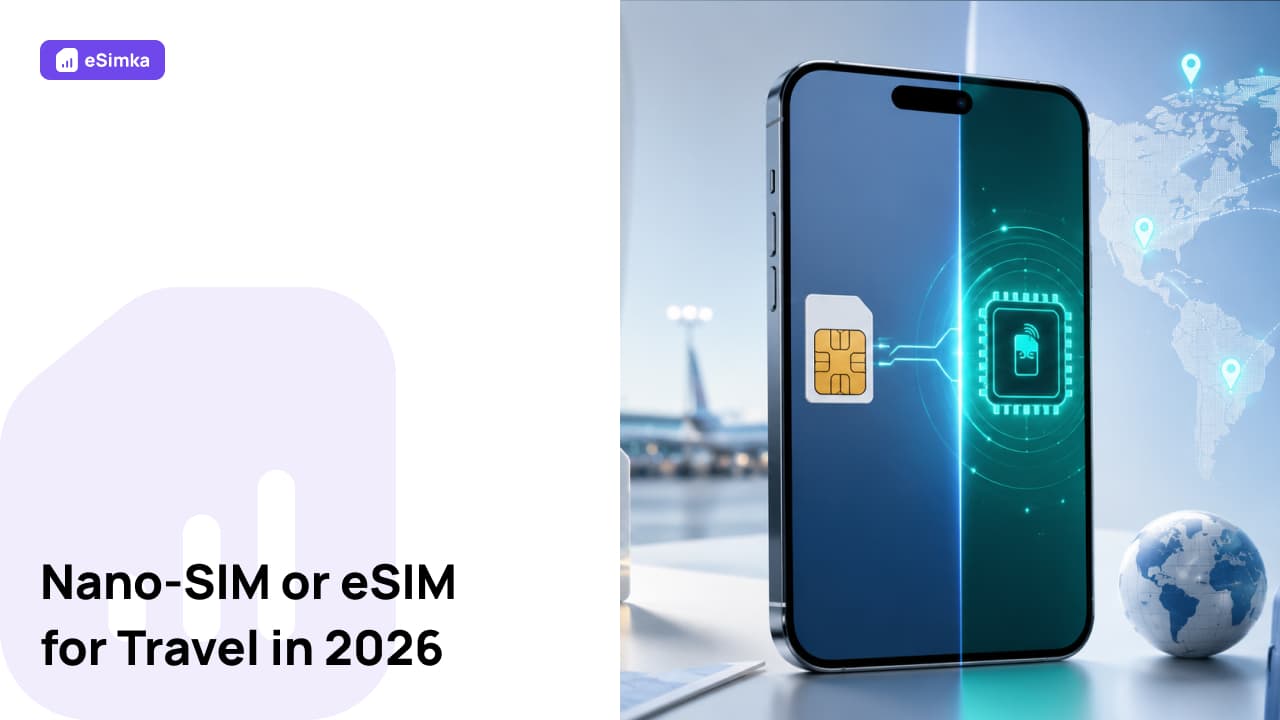
Among removable modules for smartphones, nano-SIM remains the main standard. Manufacturers moved toward such tiny dimensions in an attempt to save even a little extra space inside the phone. In reality, a nano-SIM is a complete microprocessor with its own memory and operating system, not just a simple piece of plastic.
From Mini and Micro to 4FF: Dimensions and Technical Features
The evolution of removable cards took four generations: from the bulky standard SIM (1FF) and mini SIM (2FF) to micro SIM (3FF) and the now familiar nano SIM (4FF). With each new iteration, engineers simply removed extra millimeters of plastic around the contact area. A mini SIM measured 25 by 15 millimeters with a thickness of 0.76 millimeters, while the micro SIM was reduced to 15 by 12 millimeters. The 4FF standard was approved in 2012 by the European Telecommunications Standards Institute: the chip dimensions were reduced to 12.3 by 8.8 millimeters. The module became thinner by 0.67 millimeters — approximately fifteen percent smaller than previous standards.
A working UICC silicon chip is hidden beneath the plastic shell. It contains a controller, secure storage, and RAM ranging from a few kilobytes to a megabyte. The protected memory stores the IMSI identifier, private Ki authentication key, encryption algorithms, and the operator’s list of preferred networks.
Compatibility of Physical SIM Cards With iOS and Android Devices
Apple smartphones switched to fourth-generation chips with the release of the iPhone 5. Since then, a tray for one or two physical cards has been installed in almost all international versions of the phones. The exception is devices made for the US market: starting with the iPhone 14 series, engineers removed the tray entirely and switched to built-in chips. In the Android world, a nano SIM tray has become standard — from budget Xiaomi devices to flagship Google Pixel and Samsung Galaxy lineups.
A different format has become common in Asia — the dual nano tray, where the cards are positioned opposite each other. This setup is traditionally popular among users in mainland China and Hong Kong. In European and international Android smartphones, manufacturers more often install a hybrid slot: one SIM card plus an additional microSD storage card, or a second SIM.
Physical Nano-SIM vs. Built-In SIM: What Should Travelers Choose?
The best option for connectivity while traveling depends on your route, smartphone model, and whether you want to avoid searching for mobile stores immediately after landing. When comparing a traditional physical SIM with a digital plan, the difference in both cost and convenience becomes obvious.
Comparing Roaming Costs and Local Plans in 2026
Roaming from your home carrier remains the most expensive option. For a modest one or two gigabytes of high-speed data, Russian operators charge between four hundred and one thousand rubles per day. A local SIM card costs less, but the starter package often includes unnecessary voice minutes and hidden fees.
eSimka offers options for around one hundred and fifty countries, including short three-to-seven-day packages and full unlimited plans for a month. You purchase only the amount of data you actually need without unnecessary services, and you can pay for the order before departure using a regular Russian bank card.
Buying at the Airport vs. Instant Online Activation
Buying a starter package after arrival is inconvenient: you may have to wait in line, overpay, and communicate in a foreign language. At airport terminals, prices for tourist SIM cards are often two or three times higher than in the city. When purchasing one, you may need to show your passport, have your photo taken, and wait anywhere from thirty minutes to a full day for the carrier to verify your information.
Purchasing an eSimka plan online takes only a couple of minutes. Immediately after payment, a ready-to-use QR code appears on the screen. Scan the code at home or using airport Wi-Fi, and the internet connection will start working as soon as you disable airplane mode after landing.
Pros and Cons of Using a Physical SIM Module While Traveling
In a real trip, physical SIM modules have both advantages and noticeable drawbacks.
- A traditional physical SIM can easily be moved into a basic phone, an older device, or a mobile router without dealing with profiles or requiring internet access.
- A physical chip works in any smartphone as long as the device is not locked to a specific carrier.
- However, using a SIM ejector tool on a plane or in the back seat of a taxi is hardly convenient: the tiny chip can easily fall under the seat or get scratched.
- In addition, once another card is inserted into the slot, your primary number becomes unavailable, meaning incoming calls and banking SMS messages will no longer reach you.
Dual SIM Mode: Combining a Home Nano-SIM With an eSimka Plan
Modern smartphone models allow you to keep your home number active while using an affordable local plan for internet access. What makes this setup better than constantly swapping two physical SIM cards? You do not need to search for a SIM ejector tool or open the tray, while critical services continue to function normally.
Setting Up Two Active Numbers on Apple iPhone and Samsung Smartphones
In the iOS interface on Apple devices and Samsung’s One UI, switching between numbers is extremely straightforward. Your home SIM card remains in the tray, while the eSimka digital package operates in parallel from built-in memory. In the settings, simply give the profiles clear names — for example, label one “Primary” and the other “Travel.”
Both lines remain active around the clock: calls and messages arrive without delays. Two separate signal indicators appear in the top status bar, showing reception quality for each network.
Separating Incoming Calls, Banking SMS Messages, and International Mobile Data
If you configure the settings correctly, your home number balance will not suffer from unnecessary charges while traveling. In the cellular network settings, you only need to configure a few options:
- Assign calls and SMS messages to your home SIM card so that verification codes from banks and services continue to arrive normally.
- On your primary SIM, make sure to disable mobile data and data roaming so background services do not consume your balance.
- Assign all mobile data usage exclusively to the eSimka profile.
- For the travel package, on the other hand, enable data roaming — otherwise it will not be able to register on the partner network.
Step-by-Step Guide to Setting Up Internet Access for Travel
By configuring your phone before departure, you can avoid unnecessary stress at the arrival terminal. Follow a few simple steps, and the internet connection will work immediately.
Checking Frequency Band Support and Carrier Lock Status Before Departure
First, check whether your device supports the frequency bands used in your destination region. Across Europe and Asia, 4G commonly uses Band 1, Band 3, Band 7, and Band 20. If you are traveling to the United States or Latin America, support for Band 2, Band 4, Band 12, and Band 66 is especially important. Check the carrier lock status: iPhone settings should show “No SIM Restrictions,” while Android devices should be able to accept SIM cards from third-party networks without restrictions.
Installing and Activating an International Connectivity Profile via QR Code
The entire eSimka profile setup process takes only a couple of minutes. Open the cellular data menu, select the option to add a plan, and scan the QR code from the email using the camera. The device will automatically download the carrier profile and save the authentication keys to the eUICC module. You can add the configuration before leaving home — data usage will only begin when the phone first connects to a local network abroad.
Configuring APN Settings and Selecting the Preferred Network for Roaming
In nine cases out of ten, the APN access point is configured automatically when the device first connects to the network. If the package does not start, open the mobile network properties, select the travel profile, and find the APN field. Enter the access point address according to the instructions provided with the plan without filling in the username and password fields. Apply the settings and make sure that data roaming is enabled.
Solving Common Connectivity Problems Abroad
Sometimes a phone does not automatically find a network due to weak signal reception or a minor system error. In most cases, connectivity can be restored within a few minutes without contacting technical support.
What to Do if the SIM Card Cannot Be Read or There Is No Network Signal
If the display shows “No Service” or the chip is not recognized, remove the tray and inspect the contacts. Carefully clean the metal contact tracks from dust and oxidation using a soft eraser or lint-free cloth. If the digital plan is not working, make sure the line is enabled in the system settings and restart the phone using the power button.
Manually Selecting a Partner Network and Restarting the Mobile Data Module
In automatic mode, a smartphone may sometimes select an overloaded tower or connect to a distant base station. In such situations, manual carrier selection can help:
- Open your phone’s cellular settings and go to the manual network scanning menu.
- Disable automatic connection and give the smartphone about a minute to search for available providers.
- Select the recommended network with a strong 4G or 5G signal.
- Then enable airplane mode for fifteen seconds and disable it again to restart the radio module.
FAQ
How Many Contacts and Service Data Can Be Stored on a Nano-SIM Chip?
Its built-in storage is tiny: usually between 64 and 128 kilobytes of memory are available. This is enough for around forty SMS messages and two hundred and fifty phone numbers. However, it is generally more practical to store contacts in the smartphone’s memory or in the cloud.
Can You Cut an Old Micro-SIM to Fit a Nano-SIM Slot Yourself?
Cutting the card with scissors is a bad idea: in addition to trimming the outline, you would need to grind off fractions of a millimeter from its thickness, otherwise the module could get stuck in the slot and bend the connector contacts.
Is a Physical SIM Card Resistant to Moisture and Physical Damage?
The silicon chip with gold-plated contacts is sealed and can survive accidental exposure to water, but it is vulnerable to static discharge, bending, and deep scratches on the contact surface.
Can a Device’s Location Be Determined Through a Physical SIM While Roaming?
Base stations determine the device’s location using the Cell ID identifier and radio signal delay. The type of SIM card does not matter: the network can see the connected device either way.
How Can You Safely Dispose of a Used Foreign SIM Card After Returning Home?
To securely dispose of an old SIM card, cut the contact area into several pieces with scissors. This will destroy the chip and make it impossible to read the stored keys.