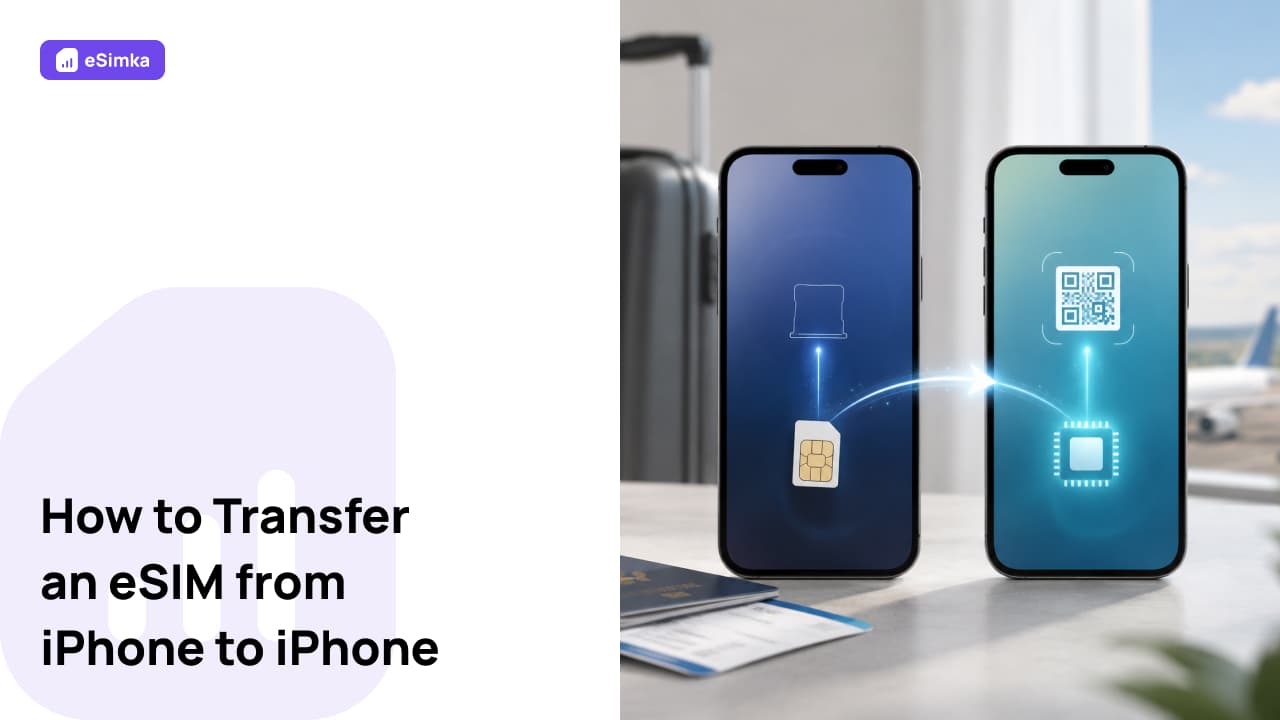
How to Transfer an eSIM from iPhone to iPhone: Switching from a Physical SIM to an eSIM — 2026 Step-by-Step Guide
Looking for a clear way to transfer an eSIM from one iPhone to another without visiting your carrier or losing connectivity? Below, you will find straightforward steps, options for switching from a physical SIM to a built-in profile, and setup recommendations. This guide will be useful when buying a new iPhone, preparing for a trip, or connecting a virtual SIM through the “eSimka” service. Save the checklists so you can quickly verify the settings under “Cellular” on your device.
In Brief: What You Need to Know
- An eSIM is a built-in cellular profile that can be activated using a QR code, transferred from another device, or configured manually with an SM-DP+ code.
- There are three ways to switch: convert a physical SIM into a digital profile, use Quick Transfer between iPhones, or scan a QR code.
- Keep both phones nearby and enable Bluetooth and internet access to transfer the profile between the devices.
- After installation, assign the line to mobile data and enable “Data Roaming” when traveling abroad.
- Contacts are not transferred automatically from the SIM chip. Move them through iCloud, a vCard file, or the Contacts app.
- You can store several profiles, but only one or two lines can be active at the same time, depending on the smartphone model and iOS version.
What an eSIM Is on iPhone
How an eSIM Works and How It Differs from a Physical SIM
It is a software profile containing subscriber identifiers that the iPhone downloads from the carrier’s system. A physical card is not required, and the profile is managed through “Settings — Cellular — eSIM.”
Advantages and Disadvantages of eSIM
The advantages are clear: quick number transfers, no risk of losing the physical chip, and convenient storage of several profiles. The disadvantages depend on the carrier: replacing the profile may sometimes require a fee or KYC procedures.
Compatibility and Requirements
Supported iPhone Models and iOS Versions
The technology is available on models that support digital cellular profiles. Open “Settings — General — About” and check whether the “eSIM Number” entry is present.
Carriers and Regions, Including eSIM-Only Models
Some versions are sold without a physical SIM tray, so they can only connect through a digital profile. Check compatibility in your country and with the local carrier before traveling.
How Many eSIM Profiles Can Be Stored and Used at the Same Time
Modern models can store several profiles and keep one or two of them active simultaneously. Check the device specifications and iOS documentation for the exact limit.
Preparing for the Switch
Checking Carrier Support and Possible Replacement Fees
Confirm whether your carrier allows your number to be transferred to a digital profile and how the replacement is processed. Identity verification and number confirmation through the carrier’s app may sometimes be required.
Updating iOS, Connecting to the Internet, and Creating a Backup
Update iOS to the latest version and charge the battery above 40%. Create an iCloud backup to preserve your contacts and messages.
Ways to Switch from a SIM to an eSIM on iPhone
Converting Your Current SIM to an eSIM in the iPhone Settings
Open “Settings — Cellular” and look for “Convert to eSIM.” If the button is missing, the carrier does not support conversion directly through the device.
Transferring an eSIM from Another iPhone Using eSIM Quick Transfer
Place both phones next to each other and enable Bluetooth and Wi-Fi. On the new phone, open “Settings — Cellular — Add eSIM” and select the option to transfer from a nearby device.
Activating an eSIM Using a QR Code, Carrier App, or Manual SM-DP+ Entry
Scan the QR code with the camera or through the profile setup section. Alternatively, enter the SM-DP+ address and activation code manually. Menu names may differ depending on the iOS version.
What Is Transferred When Replacing a SIM with an eSIM
Phone Number and Mobile Plan
The phone number and current plan are transferred if the carrier supports moving them to a digital profile. Charges and enabled services remain within the same billing account.
Contacts, SMS Messages, and Other Data
Contacts stored on the SIM chip are not copied automatically. Transfer them using iCloud or a file. Your device backup will preserve your SMS history.
Step-by-Step Instructions
How to Convert a Physical SIM to an eSIM on One iPhone
- Open “Settings — Cellular — Convert to eSIM.”
- Confirm the number and wait for the physical card to be deactivated.
- Check that the new line appears in the list of profiles.
- Assign it to mobile data under “Settings — Cellular — Cellular Data.”
How to Transfer an eSIM from iPhone to iPhone
- Turn on and unlock both devices, then place them within 20–30 cm of each other.
- On the new phone, open “Settings — Cellular — Add eSIM — Transfer From Nearby iPhone.”
- Confirm the code on the old phone and wait for the profile to be installed.
- Select the profile as the primary line for internet access and iMessage.
How to Activate an eSIM Using a QR Code or Carrier App
- Open “Settings — Cellular — Add eSIM — Use QR Code.”
- Scan the image provided in the instructions or enter the SM-DP+ address and activation code manually.
- Wait for the profile to download and enable “Data Roaming” if you are traveling.
How to Transfer an eSIM from iPhone to iPhone: Quick Overview
Use Quick Transfer between devices if both iPhones are running a supported version of iOS. This is the simplest option because it does not require visiting the carrier or waiting for an SMS message.
Two Lines on iPhone: eSIM + SIM and Dual eSIM
Selecting the Default Number for Calls, iMessage/FaceTime, and Internet
Open “Cellular — Default Line” and assign the required profile to calls, messages, and mobile data. This helps control package usage during a trip.
Managing an eSIM: Renaming, Enabling, Disabling, and Deleting
Rename the line according to the country so it is easier to identify, for example, “eSIM Turkey.” The profile can be temporarily disabled or permanently deleted through the same menu.
Common Problems and Solutions
The “Convert to eSIM” Button Is Missing
This means the carrier does not support conversion directly on the device. Request a QR code or ask the carrier to transfer the number through its service system.
Activation Error or No Network Connection
Check your internet connection, restart the iPhone, and enable Airplane Mode for 10 seconds. Then check automatic network selection and the APN according to the instructions.
SIM PIN and Carrier Restrictions
Disable the PIN on the physical SIM before transferring it and make sure there are no outstanding payments. The system may sometimes block activation when the account has overdue charges.
eSIM Security and Recovery
What to Do If the iPhone Is Lost or Replaced
Lock the device through Find My iPhone and request a replacement profile from the carrier. The old profile will be disabled automatically when the new one is installed.
Transferring the Number When Buying a New iPhone
Use Quick Transfer during the initial setup process. Keep the old phone nearby and connect both devices to Wi-Fi.
Transfer Costs and Carrier Conditions
The conditions depend on the country and the policies of the specific mobile carrier. Contact support to confirm the replacement fee and any activation limits.
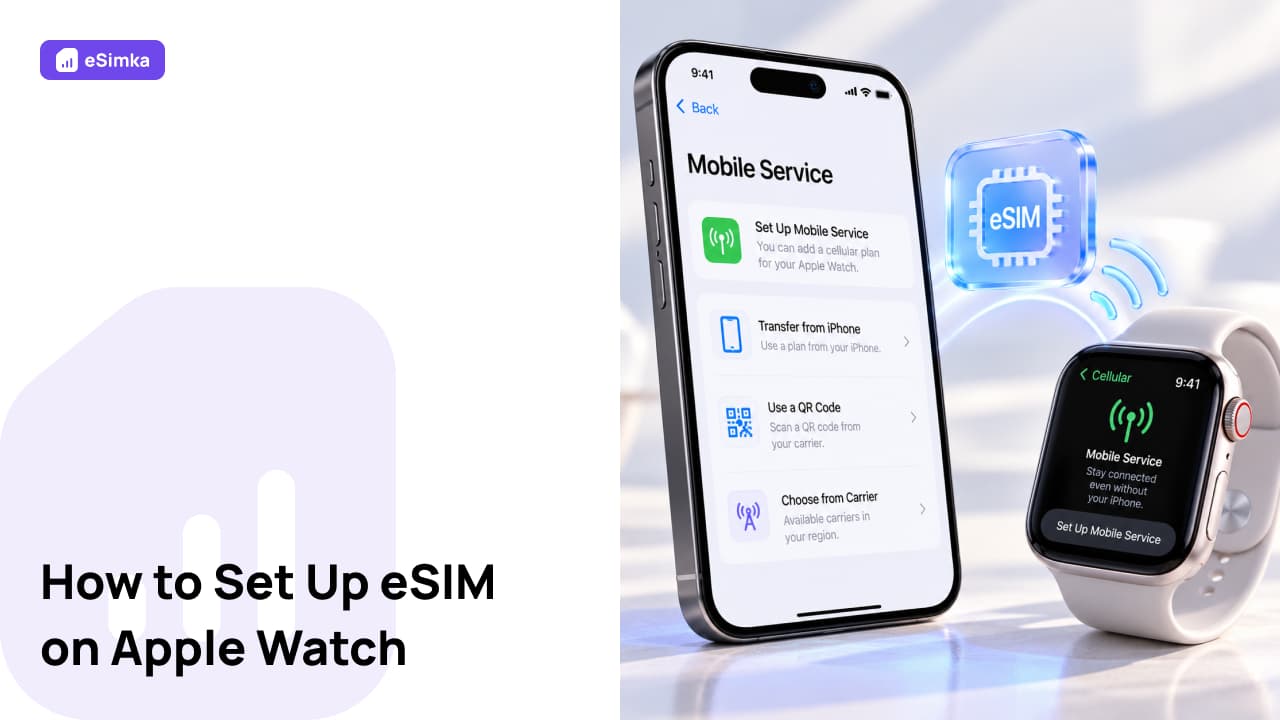
How to Connect an eSIM Through “eSimka”
- Select the country or region of your trip on the service website.
- Choose an internet package with the required validity period and data allowance.
- Check whether your iPhone supports eSIM under “About.”
- Complete the purchase and payment, enabling 3-D Secure in your banking app if necessary.
- Receive the QR code or SM-DP+ details required to install the profile.
- Add the profile through “Settings — Cellular — Add eSIM.”
- Assign it as the mobile data source and enable “Data Roaming” while traveling.
- Save the email with the instructions so you can quickly restore the APN settings.
What to Check After Arrival
- Enable the profile for internet access and set it as the default data line.
- Enable “Data Roaming” if required by the package conditions.
- Check the APN under “Cellular Data Network” according to the instructions.
- Disable automatic update downloads to avoid using up the data package.
- Monitor consumption: maps and messaging apps use less data, while video uses more.
What to Do If the eSIM Does Not Work
- Make sure the profile is enabled under “Cellular” and selected for mobile data.
- Enable “Data Roaming” if you are abroad.
- Check automatic network selection or choose a carrier manually.
- Enable Airplane Mode for 10–15 seconds and restart the phone.
- Compare the APN with the instructions and enter it manually if necessary.
- Check the data limit and remaining package allowance in your account.
- Contact “eSimka” support with your order number and screenshots of the “Cellular” settings.
Is It Worth Switching to eSIM in 2026?
Yes, if quick number transfers and convenient mobile internet setup while traveling are important to you. You will keep the physical slot available for a backup card and simplify line management.
Final Checklist for Switching to eSIM
- Update iOS and charge the device above 40%.
- Create a backup and transfer your contacts to iCloud.
- Confirm eSIM support and the cost with your carrier.
- Choose the method: conversion, Quick Transfer, or QR code.
- Assign the profile to mobile data and enable “Data Roaming” while traveling.
FAQ
How Can I Transfer an eSIM from iPhone to iPhone If at Least One Device Has Not Been Updated to iOS 16?
Use QR code activation or enter the SM-DP+ address and activation code manually. Quick Transfer between devices works more reliably on recent system versions.
Do I Need to Visit the Carrier’s Office to Activate the Profile?
In most cases, a QR code or direct transfer between devices is sufficient. An office visit is only required when special identity verification rules apply.
Can I Convert a Regular SIM Card into a Digital Profile Directly on the Phone?
Yes, if the “Convert to eSIM” button is available under “Cellular.” If it is missing, request remote activation details from the carrier.
How Can I Transfer an eSIM to a New Phone If the Old One Is Lost or Broken?
Contact the carrier to request a replacement profile and deactivate the old one. Then activate the new profile using a QR code or manual entry.
What Should I Choose While Traveling: Keep the Physical SIM for Calls or Switch Completely to eSIM?
It is convenient to keep the physical SIM for incoming SMS messages and banking confirmations. Mobile internet is better assigned to a profile with a travel data package.
Does eSIM Transfer Work from Android to iPhone?
Direct Quick Transfer is not available between different platforms. Request a QR code from the carrier and activate the profile on the Apple device through “Add eSIM.”
If you are planning a trip from Moscow and want mobile internet without overpaying, connect a suitable virtual SIM through “eSimka.” When you need to solve the question of how to transfer an eSIM from one iPhone to another, return to this guide and follow the checklist steps.