How to Top Up Mobile Data While Traveling in 2026: Refill Options and an eSIM Guide
If your connection suddenly disappears in the middle of an unfamiliar city, navigation stops working and messages no longer arrive in your messaging apps. It's worth finding out before your flight how to top up mobile data abroad quickly and without unnecessary expenses.
What to Do When Your Included Data Runs Out Abroad
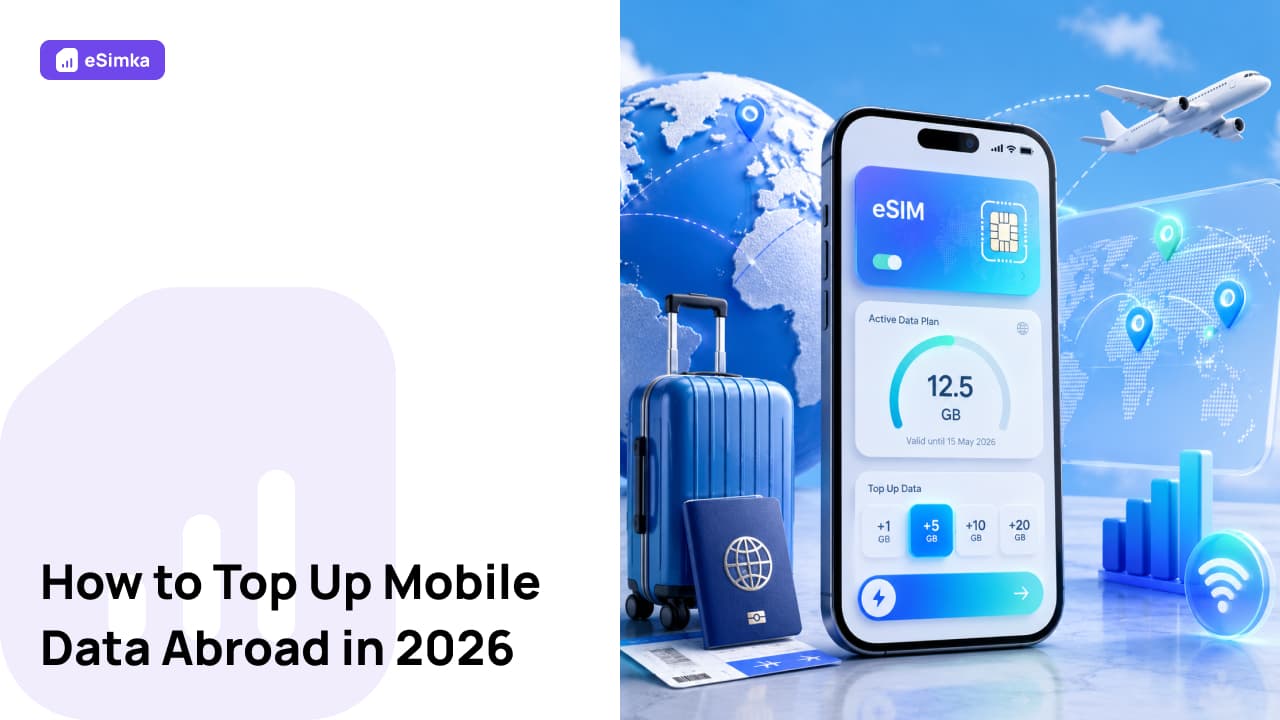
Once your main data allowance runs out, your device either switches to the basic rate or disconnects from the network entirely. You can restore network access in just a couple of minutes by purchasing the amount of data you need.
Instantly Top Up Your Data Package in the eSimka App
Virtual SIM users can top up their data in minutes. To do so, open the eSimka app, select your active profile, and specify the amount of data you want in megabytes or gigabytes. Payments with Russian bank cards are processed instantly, and your balance will update as soon as the transaction is confirmed through 3-D Secure.
Buy Additional Gigabytes on the Website Without Changing Your Plan
If you don't have the app installed, open the service website in any browser. You only need to provide your order number or the email address associated with your plan. You can then add the required amount of data on the website while keeping the profile's original validity period.
Enable Automatic Renewals and Additional Data Packages
Automatic renewal is useful on long trips because your package is topped up without manual intervention. If you're traveling with a physical SIM card from Beeline or MegaFon, check the plan terms in advance: find out which USSD commands work abroad and which additional services are worth activating before you leave home. However, a standard home plan can quickly drain your balance abroad: the charges for each additional 500 MB are significantly higher. With travel eSIMs, automatic renewal is simpler: the system purchases a standard package when your prepaid allowance is running low.
How to Quickly Check Your Remaining Gigabytes on Your Phone
Keeping track of your remaining data allowance helps ensure that navigation apps and maps don't stop working in the middle of an unfamiliar route.
Monitoring Data Usage in iOS and Android Settings
You can check how much data you've used on an iPhone with the system's built-in tools; there's no need to install third-party internet apps. Simply open Settings, select Cellular, and scroll down to the list of installed apps. This menu clearly shows how much data each app has used during the current period. On Android smartphones, these figures are available under “Data Usage.” To access data statistics, open the “Connections” menu or look for “Network & Internet.”
Checking Your Balance Through Your Account and Service Notifications
With carriers such as Beeline, you can check your remaining megabytes using service USSD commands or directly in the mobile app. With eSimka, the current balance is always displayed on the profile's main page. When your remaining data drops below 20%, the system automatically sends a service notification.
Step-by-Step Guide to Installing and Setting Up an Additional eSIM
Setting up a digital profile takes no more than five minutes, and there's no need to visit a mobile carrier store.
- First, make sure your smartphone supports eSIM and isn't locked to a specific carrier.
- Purchase a plan from eSimka. An email containing a QR code will arrive as soon as your payment is complete.
- Open the cellular settings on your phone and select the option to add a new cellular plan.
- Point your camera at the QR code you received.
- Enable data roaming for the newly created profile.
Checking Smartphone Compatibility Before Purchase
Most modern flagship smartphones come with a built-in eSIM module. Enter the code \*#06# in your phone app. If a line containing an EID number appears, this confirms that your device supports virtual profiles.
Adding a New Cellular Plan Using a QR Code
You need a stable internet connection to download the profile. Simply connect your smartphone to Wi-Fi at a hotel or airport. Open the network settings, tap “Add Plan,” and scan the code from your email. Your device will automatically download the required profile settings and save them to its internal storage.
Configuring Roaming Settings and Selecting the Active SIM for Data
Set your eSIM as the primary source of mobile data and keep your physical SIM card for receiving bank SMS messages. Turn on the “Data Roaming” switch for the new plan; otherwise, internet access will remain unavailable.
Comparing Data Top-Up Options for Travel
When planning their expenses, travelers usually compare extending their home carrier's roaming service with purchasing a local plan.
Adding a Data Package to Your Existing Number
Extending your home number's data allowance is technically simpler, but standard roaming plans are often too expensive. If you purchase an additional package from carriers such as Beeline or MegaFon, you may need to enter USSD commands manually or activate the required options through your account, risking a depleted balance.
Buying a Temporary Local Data Package for a Specific Country
If you're visiting only one country, purchasing a local package from a specialized service is more economical. You get reliable mobile internet for the required period without needing a passport or facing hidden subscription charges.
Regional and Global Data Plans for Multiple Countries
If your itinerary includes several countries and connecting flights, activating a regional plan from the start is more practical. A single profile provides connectivity in 150+ countries, so you won't need to buy physical SIM cards at every border crossing.
Ways to Optimize Data Usage While Roaming
Properly configuring your device can make your purchased data package last two or three times longer.
Enabling Data Saver in Google Play and the App Store
Block app updates from downloading over mobile data in the app stores. In the store settings, select the option to download updates over Wi-Fi only.
Disabling Background App Refresh and Automatic Media Downloads
Background uploads of photos and videos in chats can quickly consume hundreds of megabytes. Disable background data refresh in your smartphone settings and turn off automatic file downloads in Telegram and WhatsApp.
Frequently Asked Questions (FAQ)
How Can You Share Internet with Other Devices While Using an eSIM Data Package?
Enable the hotspot feature in your device's cellular settings. You can share your mobile data with a laptop or tablet using the standard method, provided your chosen plan doesn't prohibit tethering.
What Determines Mobile Internet Speed While Roaming Internationally?
Your actual connection speed depends on the local carrier's network and the cell tower your smartphone connects to. In cities, the network supports 5G and LTE, while in remote mountainous areas, it may temporarily switch to 3G.
What Should You Do If Your Data Runs Out and No Free Wi-Fi Is Available?
To top up your data when your balance is zero, simply connect to Wi-Fi at a hotel or café and open the eSimka mobile service. Transactions using Russian bank cards are processed without delays.
Do You Need to Delete an Old eSIM Before Installing a New Data Package?
You don't need to erase an expired profile from your phone's system storage. Most modern smartphones can store between 5 and 10 virtual SIM cards simultaneously. You can temporarily disable an inactive plan using the toggle in the system's connection settings.
How Can You Stop Running Out of Mobile Data During Frequent Trips?
Download offline navigation maps in advance, disable cloud synchronization of media files, and check your remaining megabytes in the system settings.
How Do You Choose the Right Amount of Data If You Don't Need a Large Package Every Month?
For a short trip lasting two or three days, a 1–3 GB package is usually enough if you only use messaging apps and navigation. If you plan to watch videos or stream content while traveling, it's safer to choose a plan with at least 10 GB or an unlimited option.