How to Make Calls with eSIM Abroad: A Step-by-Step Guide for 2026
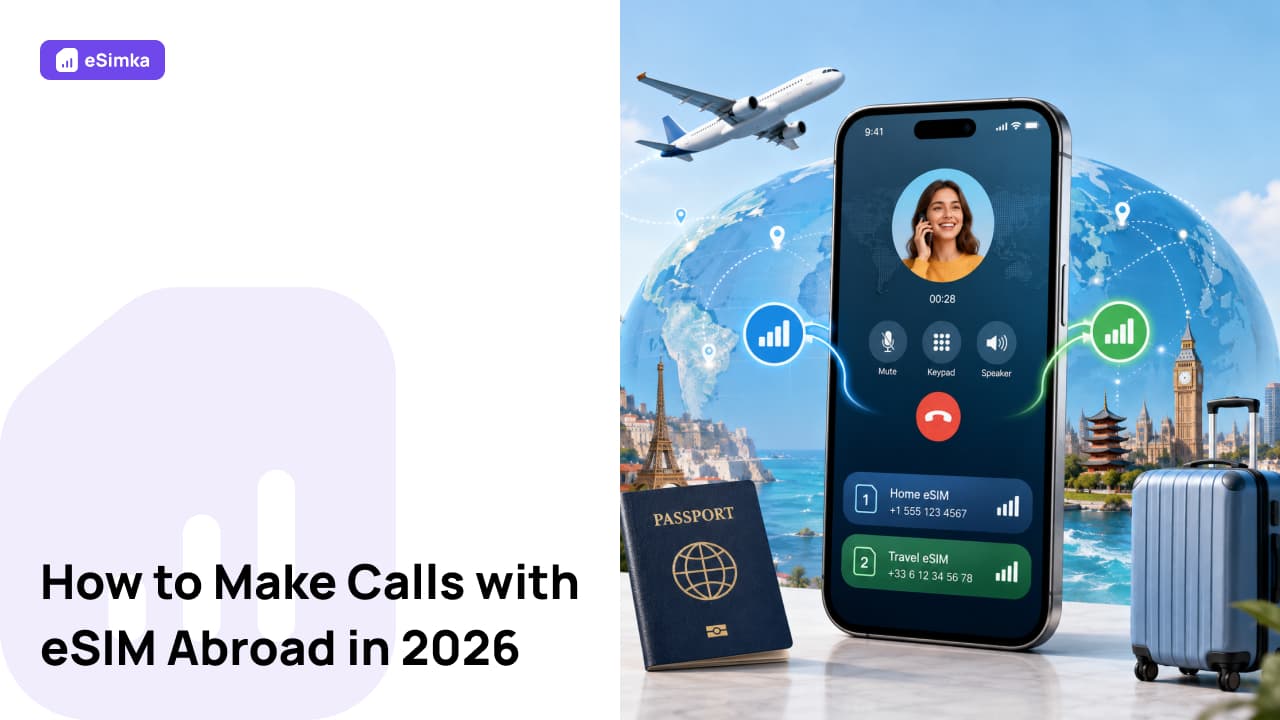
Digital mobile profiles have changed the traditional approach to international travel. The question of how to make calls with eSIM while traveling comes down to the basic architecture of using two numbers on one smartphone.
Can You Make Calls with eSIM: Differences Between Plans
Many travelers wonder whether they can make calls through eSIM in the usual way by dialing a landline or mobile number. The answer depends on the type of profile you choose. There are two main types of digital SIM plans on the market: packages with a full range of services and profiles designed exclusively for mobile internet.
Full Mobile Plans with Calls, SMS, and a Local Number
This type of plan includes a dedicated phone number for the destination country, a package of outgoing minutes, and incoming text messages. It makes it easy to call landlines at hotels, restaurants, or local services while abroad without using third-party apps. Full cellular service of this type requires registration with a foreign network and allocation of a phone number. These packages are usually more expensive, and in some countries operators require identity verification before activating the profile.
Data-Only Plans: Voice Communication Options
Most travel profiles are designed exclusively for mobile data. With eSimka, users get fast internet access in more than 150 countries through a convenient QR code and can pay for their plan using Russian bank cards. These packages do not include a traditional phone number for making calls through a cellular tower. You can make calls with a Data-Only eSIM using internet protocols, either through messengers or through your smartphone’s built-in network calling features. This allows you to make calls without a local operator’s SIM card while keeping your expenses under control.
How to Set Up Outgoing Calls with eSIM on iPhone
Apple smartphones support the use of two numbers starting with the iPhone XS and iPhone XR. For flexible call management, iOS provides a clear interface for separating the two lines.
Choosing the Default Number for Voice Calls in iOS
After you decide to connect a digital profile, open Settings, go to Cellular, and select the Default Voice Line option. The system will ask you to choose the primary line for calls and SMS messages. If you are using a package with included minutes from a foreign provider, select the newly added profile as the primary line. If your eSimka profile is data-only, keep your home number for calls and assign the new digital SIM to mobile data.
The setup takes less than a minute and prevents accidental international roaming charges on your home SIM.
How to Change the SIM Card for Calls to a Specific Contact
When using two SIM cards in iOS, you can assign a specific line to an individual contact in your address book. Open the required contact, tap the line showing the current SIM label beneath the person’s name, and select the preferred plan for calls. The smartphone will remember this choice for future calls to that person.
Quick Line Switching on the Dial Pad
If you need to dial a new number manually, open the Phone app and go to the Keypad tab. At the top of the screen, you will see a gray indicator showing the currently active line. Tap it to instantly switch the call to the second number before placing the call. Once you understand how to make calls with eSIM on iPhone through the dial pad, you have full control over which network is used for every call.
How to Make Calls with eSIM on Android
Android devices from different manufacturers use a similar logic for managing two lines, although the names of menu items may vary slightly.
Setting the Primary SIM for Calls in SIM Manager
Open Settings, go to Connections or Network & Internet, and then find SIM Manager. In the Preferred SIM section, the system allows you to assign separate lines for voice calls, text messages, and mobile data. Select Ask Every Time if you want to manually choose which line to use before every call.
Switching Numbers in the Phone App on Samsung, Xiaomi, and Pixel
On Samsung smartphones, the standard dialer displays two call buttons labeled 1 and 2 at the bottom of the screen. Google Pixel and Xiaomi users see a line-selection drop-down menu directly below the number entry field. This simplifies outgoing calls and helps prevent confusion between home and foreign operator plans.
Making Calls Abroad Without a Direct Phone Number Using eSIM Data
Even if your plan does not include a phone number, you can still communicate by voice. The high data speeds provided by a travel eSIM offer a stable connection for any voice calling app.
Voice and Video Calls Through Popular Messengers
Apps such as Telegram, WhatsApp, or FaceTime continue to work with your primary number while using the foreign eSIM’s mobile data for voice transmission. The person you are calling sees your usual contact, while the call travels through a secure internet channel. This allows you to make calls with eSIM without risking charges for international minutes from your home operator.
Using Wi-Fi Calling Through the Internet Connection of the Second SIM
Modern versions of iOS and Android can route voice calls from your home SIM through the mobile data connection of the second active SIM. In your cellular settings, enable Wi-Fi Calling for your home SIM card. When the smartphone detects that your home network is unavailable, it may display a status indicating that calls are being routed through the eSIM’s mobile data. You will then be able to receive and make calls using your home operator’s rates while located anywhere in the world.
How to Avoid Overspending on Calls in International Roaming
Properly dividing tasks between your physical SIM card and eSIM profile helps protect your balance from unexpected charges during flights and travel between destinations.
Correct Data Roaming Settings for Two SIM Cards
Open your phone’s cellular settings. For your home SIM card, disable Data Roaming to prevent background app updates from using expensive roaming data from your home provider. For the installed eSimka profile, on the other hand, enable Data Roaming because many international profiles connect to partner networks through roaming agreements.
Also disable Allow Cellular Data Switching on iPhone so the system does not use your home line when the second network temporarily loses signal.
International Number Format When Traveling
When dialing any number from abroad, always use the plus sign and the country code. For calls to Russia, the number should start with +7 rather than 8. Local numbers in your destination country should also be dialed with the full international prefix so that the foreign network can correctly route the outgoing call.
Frequently Asked Questions (FAQ)
Will iMessage and FaceTime Continue to Work After Adding an eSIM?
Apple services will continue to work normally. In Messages and FaceTime settings, you can keep your Russian phone number linked to the services, while data for sending media files and making video calls will use the internet connection from the active eSIM. Notifications on Apple Watch will also continue to sync without issues.
Can I Receive Incoming Calls on a Physical SIM Card and eSIM at the Same Time?
Smartphones that support Dual SIM Dual Standby keep both lines active while in standby mode. You can receive calls and SMS messages on either number. If a call is active on one line, the second line may temporarily become unavailable until the conversation ends.
How Can I Use My Home Operator’s Wi-Fi Calling Through eSIM Internet?
Enable Wi-Fi Calling in the settings of your home SIM card. Make sure mobile data is assigned to the travel eSIM. The status bar may display your operator’s name with an indication that the second SIM’s mobile data is being used. After that, calls can be charged as if you were in your home region.
Will My Usual Number Remain in Messengers When Making Calls Through a Travel eSIM?
Your profile in WhatsApp, Telegram, and other services is linked to your account, not to the current internet connection. After installing a travel eSIM, messengers will continue to display your existing number. If the app asks whether you want to change the number, choose to keep your current details.
What Should I Do with the Physical SIM Card if My Number Has Been Transferred to an eSIM?
The operator deactivates the physical SIM card when the number is transferred to a digital eSIM profile. You can remove the plastic SIM card from the tray and dispose of it. The slot will remain available for another physical SIM card if necessary.
How Many Active Digital SIM Cards Can Be Used at the Same Time?
Most modern smartphones can store between 5 and 10 eSIM profiles, but only one or two can be active at the same time depending on the device model. Starting with the iPhone 13, two eSIM profiles can work simultaneously without using a physical SIM card.