How to Install eSIM on Android
Learn how to install an eSIM on Android using a QR code or manual setup, configure mobile internet, and troubleshoot common activation issues.

eSIM allows you to connect to mobile networks without using a physical SIM card. Instead of inserting a plastic SIM card, users download a digital carrier profile directly to their smartphone.
On most Android devices, installing an eSIM takes only a few minutes. Once activated, the profile can be used for mobile data, calls, and text messages, while your primary SIM card remains active for your personal number.
Which Android Smartphones Support eSIM?
eSIM support depends on the specific device model.
Some of the most popular Android smartphones with eSIM support include:
Samsung
- Samsung Galaxy S20 and newer;
- Samsung Galaxy S21, S22, S23, S24, and later models;
- Samsung Galaxy Z Fold series;
- Samsung Galaxy Z Flip series.
Google Pixel
- Google Pixel 3 and newer;
- Google Pixel 4, 5, 6, 7, 8, and later models.
Xiaomi
- selected Xiaomi 13 series models and newer;
- certain Xiaomi, Redmi, and Poco devices with eSIM support.
Other Brands
- Motorola;
- Oppo;
- Honor;
- Sony;
- Huawei (selected models).
Before purchasing an eSIM, it is recommended to verify compatibility with your specific device.
What Do You Need Before Installation?
Before setting up an eSIM, prepare the following:
- an eSIM-compatible smartphone;
- access to Wi-Fi or mobile internet;
- a QR code or activation details;
- the latest Android version available for your device;
- a few minutes for setup.
It is also recommended to save the QR code or activation details until the installation process is fully completed.
How to Install an eSIM Using a QR Code
Most eSIM providers offer a QR code for quick installation.
General setup steps:
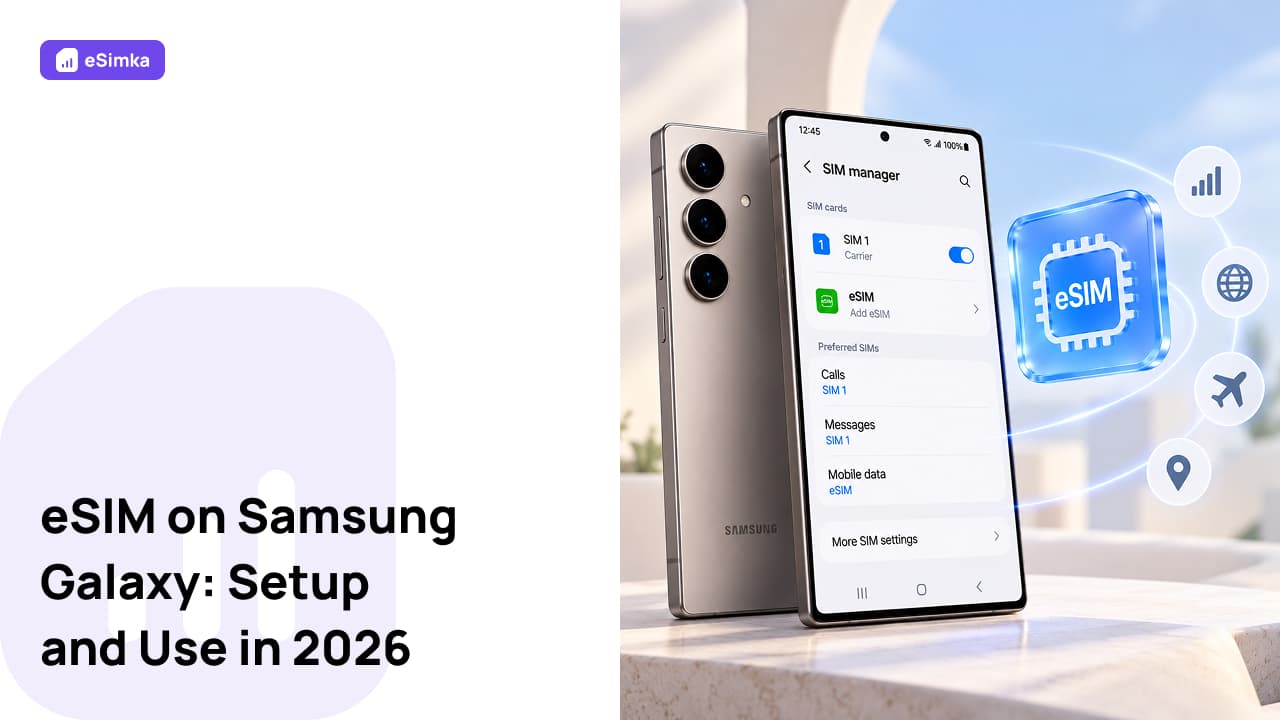
- Open your smartphone settings.
- Navigate to Network & Internet, Connections, or SIM Manager.
- Select Add eSIM.
- Tap Scan QR Code.
- Scan the QR code received after purchase.
- Confirm the installation.
- Wait for activation to complete.
Once installed, the eSIM profile will appear in the list of available SIM cards.
How to Install an eSIM Manually
If the QR code is unavailable or cannot be scanned, you can install the eSIM manually.
To do this:
- Open your device settings.
- Go to the SIM card management section.
- Select Add eSIM.
- Choose Enter Details Manually.
- Enter the SM-DP+ address and activation code provided by your carrier or eSIM provider.
- Confirm the installation.
- Wait for the setup process to finish.
After activation, the eSIM profile will be ready to use.
How to Select eSIM for Mobile Data
If multiple SIM cards are installed on the device, you need to choose the eSIM for mobile data usage.
To do so:
- Open SIM card settings.
- Go to the mobile data section.
- Select the installed eSIM profile.
- Save the changes.
After that, all mobile internet traffic will use the eSIM connection.
Do You Need to Enable Data Roaming?
For many travel eSIM plans, enabling data roaming is required for the connection to work properly.
To enable data roaming:
- Open mobile network settings.
- Select the installed eSIM.
- Open network settings or mobile data options.
- Turn on Data Roaming.
Before traveling, check your provider’s instructions to confirm whether data roaming is necessary.
How to Remove an eSIM on Android
After your trip or when your plan expires, you may choose to remove the eSIM profile.
To delete an eSIM:
- Open your smartphone settings.
- Go to the SIM card section.
- Select the installed eSIM profile.
- Tap Delete eSIM.
- Confirm the removal.
Before deleting the profile, make sure you no longer need it.
What to Do If eSIM Is Not Connecting
If mobile internet does not work after installation, check the basic settings.
Make sure that:
- the eSIM profile is activated;
- mobile data is enabled;
- data roaming is turned on if required;
- the correct eSIM is selected for mobile data;
- the device has connected to the carrier network;
- APN settings are configured correctly.
It is also recommended to restart the smartphone after completing the installation.
FAQ
Can I use an eSIM and a physical SIM card at the same time?
Yes. Most modern Android smartphones support using an eSIM and a physical SIM card simultaneously.
Do I need internet access to install an eSIM?
Yes. Downloading and activating an eSIM profile requires a Wi-Fi or mobile internet connection.
Why can’t I find the eSIM option in my settings?
Your device may not support eSIM technology, or the feature may be disabled for your region or device version.
Do I need to enable data roaming?
For most travel eSIM plans, yes. Data roaming is required to connect to partner networks abroad.
Can I store multiple eSIM profiles on one device?
Yes. Many Android smartphones allow users to store multiple eSIM profiles and switch between them when needed.
Can I reinstall an eSIM after deleting it?
It depends on the provider’s policy. Some eSIM profiles can be reactivated, while others can only be installed once.