How to Activate eSIM Abroad: A Step-by-Step Guide for Travelers in 2026
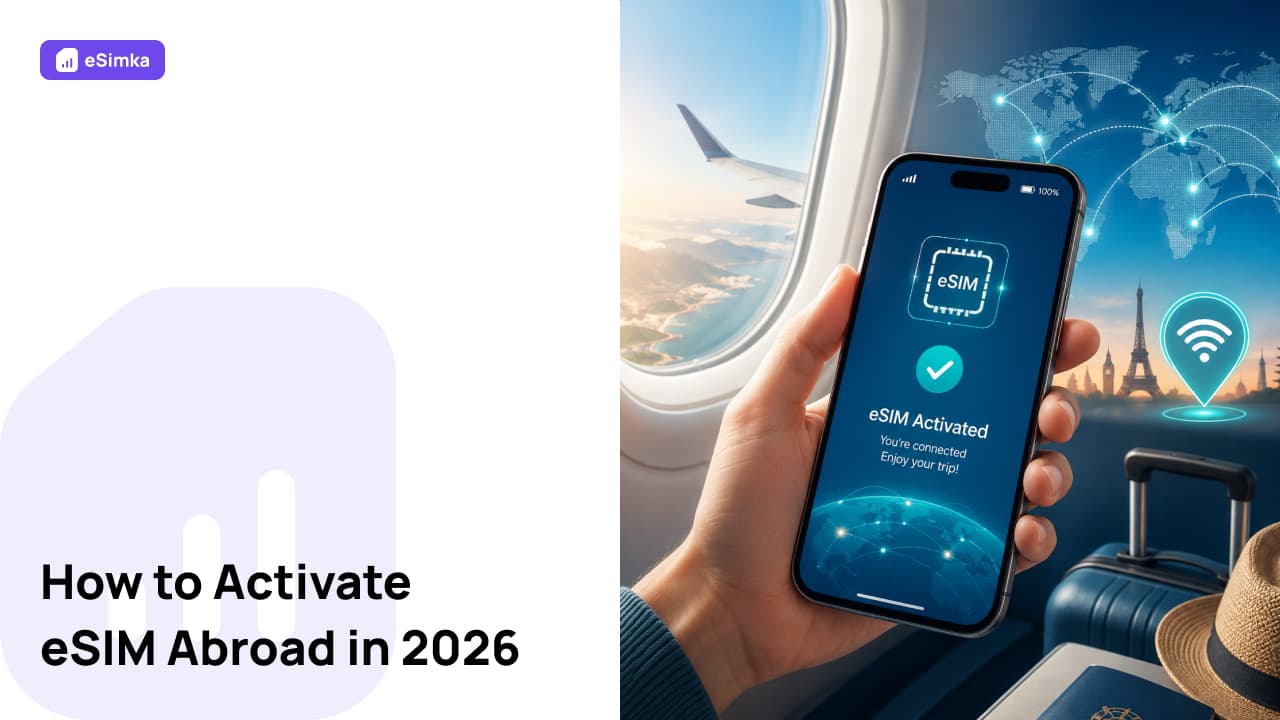
A virtual SIM card provides internet access immediately after your plane lands, so there is no need to queue at local mobile operator stores. To activate eSIM abroad without issues, prepare your smartphone in advance and complete the basic network setup after arrival.
What to Check Before Buying and Installing a Digital SIM
First, check the technical capabilities of your phone. A built-in module is available in many current mid-range and flagship smartphones, but models produced for certain markets may have hardware limitations.
Smartphone Compatibility With eSIM Technology
The electronic chip works instead of a traditional SIM slot and can store several mobile plans at once. The easiest way to check device compatibility is through the standard system menu.
Open the Phone app and dial *#06#. If an EID (Embedded Identity Document) number appears in the list of parameters, your device supports eSIM. iPhone owners can open Settings > General > About and find the EID field. Please note: iPhone versions produced for mainland China, Hong Kong, and Macau come with two nano-SIM slots and physically do not contain a built-in eSIM module.
Checking Whether the Device Is Locked to a Mobile Operator (SIM Lock)
If the device is locked to a specific operator’s network, a profile from another provider will not work. On iPhone, open Settings > General > About and find the Carrier Lock section. It should display the status “No SIM restrictions.”
On Android smartphones, open the system section Connections or Network & Internet. Insert a physical SIM card from another operator. If the screen asks for a Network Unlock PIN, the phone is carrier-locked. Until the original operator removes the restriction, you will not be able to connect an eSIM from another service.
Differences Between Local, Regional, and Global Plans
Before choosing a plan, consider the geography of your trip. Providers usually offer three types of packages:
- Local plans work within a single country, such as an eSIM for China or Turkey, and usually offer the lowest price per gigabyte.
- Regional plans cover a group of countries, such as Europe, Asia, or Latin America, allowing the phone to switch automatically between networks.
- An international eSIM works in more than 130–150 countries, which is convenient for complex routes with multiple connections.
The eSimka platform helps you choose an eSIM plan for different destinations and pay for the order with Russian bank cards without difficulty.
When to Install and When to Activate eSIM
If you confuse adding the profile with activating the plan, prepaid days may begin to be used earlier than expected. It is important to clearly separate these two procedures.
The Difference Between Downloading a Profile and Activating the Plan
When you download a profile, the operator’s network settings are simply stored in the built-in chip memory. A stable Wi-Fi connection is required for this process. You can safely add the eSIM at home before departure: the phone will simply save the configuration in memory. The plan starts working only after the first registration on a foreign mobile network or when mobile data is enabled.
When the Prepaid Period Starts
The validity period is tied to one of two events. With some local Asian operators, the package activates immediately when the eSIM is added to the smartphone. In other cases, the timer starts only when your phone connects to a base station in the destination country. eSimka specifies these rules in each plan description, so scan the received QR code either at home or after landing depending on the selected plan.
Step-by-Step eSIM Setup on iPhone (iOS)
You can add an eSIM to an Apple device in just a couple of minutes. The main requirement before starting is a stable Wi-Fi connection at home or at the airport terminal.
Installing the Profile by Scanning a QR Code
Step-by-step profile installation instructions:
- Open the device settings and go to the cellular section.
- Select “Add eSIM” or the option for adding a cellular plan.
- Tap “Use QR Code.”
- Point the camera at the code, either from a printed sheet or another screen.
- Tap “Continue” and wait while the system saves the configuration data.
- Give the new SIM a clear name, such as “eSimka” or “Vacation.”
Manually Entering the SM-DP+ Address and Activation Code
If you cannot scan the image, open the manual setup option. At the bottom of the scanning screen, tap “Enter Details Manually.” Find the “SM-DP+ Address” and “Activation Code” in the email and enter them into the corresponding fields. The “Confirmation Code” field is only required if the provider has supplied a separate PIN code.
Configuring Mobile Data and Enabling Roaming
After arrival, all that remains is to configure mobile internet:
- Go to Settings > Cellular > Cellular Data and select the travel profile you created.
- Be sure to disable “Allow Cellular Data Switching” so the iPhone does not switch to your home plan when the signal is weak.
- Open the settings of the new eSIM and enable data roaming. Without this, the foreign network will not pass mobile traffic.
Step-by-Step eSIM Setup on Android (Samsung, Google Pixel, Xiaomi)
On Android smartphones, the interface depends on the manufacturer’s software, although the general procedure is similar everywhere.
Adding a Profile Through the SIM Manager
On Samsung smartphones, open Settings > Connections > SIM Manager. Tap “Add eSIM” and point the camera at the provided QR code. On stock Android, such as Google Pixel, the path is: Settings > Network & Internet > SIMs > Add > Download a SIM. On Xiaomi and Redmi smartphones, go to Settings > SIM cards & mobile networks, enable the “Use eSIM” option, and add a new plan.
After scanning, confirm the action by tapping “Download” or “Enable.”
Manual APN Configuration if Necessary
In almost ninety percent of cases, the required access point is configured automatically during network registration. If the signal is strong but there is still no connection, we recommend checking the APN settings manually.
Open the APN section in the profile settings and add a new entry. Enter the details from the plan instructions into the Name and APN fields, for example globaldata or internet. In most cases, the username and password fields can remain empty. Save the APN settings, make the profile active, and restart the connection by enabling airplane mode for about 10 seconds.
How to Use Two SIM Cards Without Overpaying for Home Roaming
Most modern smartphones support Dual SIM Dual Standby technology. This allows you to receive calls on your home number while using the purchased international plan for mobile internet.
Setting eSIM as the Primary Source of Mobile Internet
In the wireless connection settings, clearly assign separate roles to each SIM. Set the travel eSIM as the preferred source of mobile data. Your browser, messengers, and maps will then use only the prepaid gigabytes without charging your primary balance.
Disabling Data Roaming for the Main Physical SIM Card
A common mistake is leaving mobile data enabled on the home SIM card, which can lead to unexpected charges. To avoid overpaying, find the “Data Roaming” option in the main SIM settings and turn it off. There is no need to disable the entire line, since it can still receive calls.
Keeping Incoming Calls and Banking SMS Available on Your Home Number
Incoming SMS messages abroad are free with most operators. With data roaming disabled, your primary number will continue to receive banking and service SMS messages. Decline incoming calls and communicate through internet services to avoid international roaming charges.
What to Do if eSIM Internet Does Not Work Abroad
If the internet does not start working immediately, check the connection settings one by one.
Manually Selecting a Partner Network
Sometimes the cellular module automatically chooses a network without a roaming agreement or one with poor signal quality.
In the eSIM settings, disable automatic network selection and wait about thirty seconds while the phone searches for available networks. From the list, select the required operator and compare its name with the partner list provided for your plan on the eSimka website. Once the device connects to the correct tower, the LTE or 5G icon will appear in the status bar.
Resetting Network Settings and Restarting the Device
If manual network selection does not help, simply restart the device. Rebooting forces the radio module to authenticate again with the cellular network. If the internet still does not appear, reset the network settings through the system menu. Keep in mind that all saved Wi-Fi passwords and Bluetooth pairings will be deleted. Do not delete a working eSIM when troubleshooting: for most plans, the same QR code cannot be activated again.
Frequently Asked Questions (FAQ)
Do I Need to Enable “Data Roaming” for a Travel eSIM to Work?
Yes. Without it, mobile data will not work. Travel profiles operate through international roaming protocols. If “Data Roaming” is disabled, the device will block all mobile traffic. Keep roaming enabled only for the eSIM and disabled for the physical SIM card.
Do Travel eSIMs Support Incoming and Outgoing Calls?
Most travel packages are designed exclusively for internet access and do not include a number for standard calls. You can make calls through familiar internet services such as WhatsApp, FaceTime, or Telegram. If the package includes a real phone number, for example from the UK or Austria, this will be clearly stated in the plan description.
When Does the Purchased Internet Package Activate and Start Being Used?
The paid period starts only after the device first connects to a local mobile network. You can download the profile in advance: while you are still at home, the prepaid days will not be used.
Can I Use a Physical SIM Card and eSIM at the Same Time?
Yes. The device can keep both the physical SIM card and the built-in virtual module connected at the same time. Incoming calls and SMS messages will arrive on your personal number, while mobile data will use the purchased package.
Will My WhatsApp and Telegram Number Change After Connecting an eSIM?
No. Messengers are linked to your account, not to the SIM card installed in the device. If the messenger asks whether you want to update your number after installing a SIM, simply select “Keep Current Number.”
How Many Virtual SIM Profiles Can Be Stored in the Phone’s Memory?
The electronic chip can store between 5 and 10 profiles: iPhones usually save between 8 and 10, while Android-based models store around 5 to 7. Only one or two profiles can remain active at the same time.
Can I Scan the QR Code Again or Transfer the eSIM to Another Phone?
Each QR code is intended for a single installation and is linked to a specific device. If you delete the profile from memory, you usually cannot restore it using the same link. To transfer an active plan to another device, contact eSimka support before deleting the profile.
How Can I Top Up or Extend the Plan if I Run Out of Data While Traveling?
You can add more traffic through your eSimka account or by purchasing an additional package on top of the current one. The extra data will usually be added within a couple of minutes; you only need to connect your phone to any available Wi-Fi network.
How Should I Disable or Delete the eSIM After Returning From a Trip?
After returning home, simply switch cellular data back to your primary physical SIM card. Once the trip is over, you can either disable the eSIM in the system settings or delete the profile from the list of SIM cards.