How eSIM Works Abroad: A Complete Guide
This guide will help you quickly prepare your phone, choose a data package, and avoid common installation errors. The instructions are suitable for tourists, business travelers, and people relocating from Moscow or other cities.
In Brief: What You Need to Know
- Check whether your phone supports eSIM: compatible models are listed in the device settings and on the manufacturer’s website.
- Purchase a package for the required country or region and save the QR code in “Files” or “Photos” for offline access.
- Install the profile at home over Wi-Fi, but enable mobile data only after landing.
- Set the eSIM as the mobile internet source while keeping your primary SIM for calls and banking SMS messages.
- Enable data roaming for the eSIM profile if required by the package instructions.
- If there is no network connection, check network selection and APN settings, then restart the device.
What an eSIM Is and How It Works Abroad
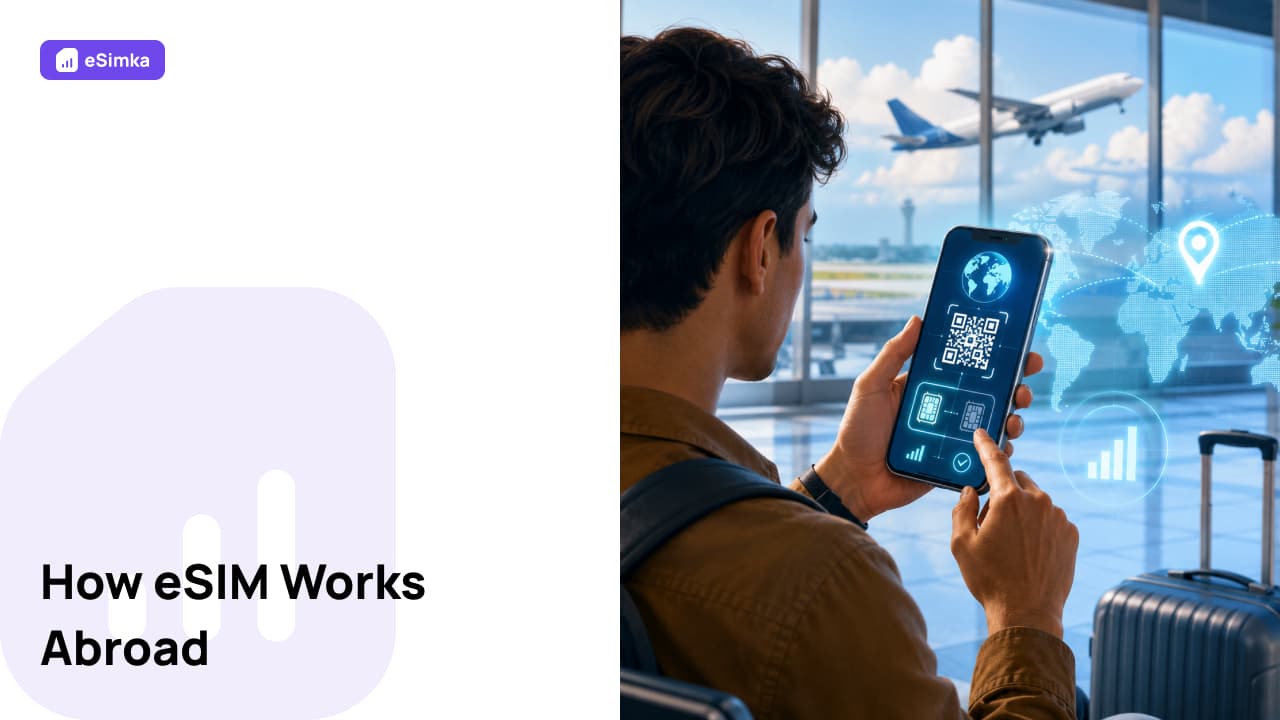
An eSIM is a built-in module inside a smartphone that replaces a physical SIM card and stores a mobile carrier profile. You receive the connection details remotely without visiting a store or changing the physical SIM in the device slot. The data line is linked to the phone, while the profile is managed through the settings menu.
While traveling, the eSIM connects to a local partner network and provides data through 4G or 5G where permitted by the package conditions. Speed and stability depend on coverage, base station congestion, and the device model. To avoid unnecessary data usage, disable automatic app updates under “App Store/Google Play” before departure.
eSIM vs. Physical SIM: Key Differences
A physical card requires delivery and manual replacement, while a digital profile can be downloaded in minutes using a QR code. You can store several profiles and quickly switch the data line under “Cellular/Mobile Network.” Internet tethering is usually available, although some plans restrict it.
International, Regional, and Local eSIM
International profiles cover several groups of countries and are convenient for multi-stop routes. Regional plans work across a particular part of the world and simplify setup when traveling between countries. Local plans usually offer a lower price per gigabyte within one country and are suitable for longer stays.
Compatibility and Coverage
Does Your Smartphone Support eSIM?
Check whether the “Add eSIM” option is available under “Cellular/Mobile Data” on your phone. On iPhone, support is available on a number of models released in recent years, although details depend on the iOS version. On Android, compatibility depends on the manufacturer, firmware, and the region where the device was sold.
Carrier and Country Restrictions, 5G/4G
Not every country allows remote profile downloads, and access to 5G may be restricted by the terms of a particular package. In most cases, 4G LTE is available, but maximum speeds vary by location. At resorts, speeds may decrease in the evening because of higher network congestion.
Where to Buy an eSIM for Travel
Marketplaces and Apps
Profiles are available through specialized services where you select the country, validity period, and data allowance. You can purchase the package in advance using a bank card with 3-D Secure and save the installation code in “Files.” Chat support may be available at night, although this depends on the service.
Mobile Carriers and Banks
Some mobile carriers and financial apps offer travel packages for different countries. Terms and country lists vary, so check the available partner networks and tethering rules. If regional restrictions matter, confirm whether activation is allowed outside Russia.
Selection Criteria: Countries, Data Allowance, Validity Period, Speed, and Support
Compare your route with the list of covered countries, especially if you have connecting flights. Choose a data allowance based on your habits: messaging apps use little data, while video can consume tens of megabytes per minute. The question “does eSIM work abroad?” comes down to phone compatibility, network availability, and profile support in the specific location.
Who eSIM Is Suitable For
Tourists use maps, taxi apps, and translation tools and usually consume a moderate amount of data during the day. Business travelers use email, video calls, and corporate VPNs, which creates heavier loads during working hours. People relocating often choose larger packages and switch profiles less frequently under “Mobile Network.”
How to Choose an eSIM Plan
For a short weekend trip, choose a small data allowance with an additional 20–30% for navigation and cloud photo uploads. For a one-week trip, 3–10 GB is often suitable for moderate use of messaging apps, taxi services, and social media. Even a couple of hours of streaming video per day may require tens of gigabytes.
Compare the validity period with your flight dates, taking overnight flights and time zone differences into account. Check when the countdown begins: when the profile is activated or when it first connects to a network. If you plan to use tethering, check whether the plan restricts hotspot use.
Preparing for the Trip
When to Buy an eSIM and Where to Store the QR Code and Activation Details
Purchase the package a few days before departure and download the QR code to “Photos.” Save the SM-DP+ details in “Notes.” When checking tickets at the airport counter, it is convenient to open the file without internet access. For extra reliability, save another copy in cloud storage with offline access enabled.
What You Need for Installation: Internet, QR Code, SM-DP+, and Activation Code
You need a stable Wi-Fi connection or a working primary SIM to download the profile. Keep the QR code or manual setup details available: the SM-DP+ address and activation key. The camera reads the image within seconds, after which the system asks you to name the profile.
Offline Preparation: Maps and Apps
Download offline city maps and language packs before leaving home. Disable automatic photo synchronization under “Photos/Google Photos” before enabling the new profile. This reduces the risk of unexpectedly consuming several gigabytes on the day of arrival.
Activation and Setup
Installation on iPhone (iOS)
Open “Settings → Cellular → Add eSIM,” then scan the QR code with the camera. Give the profile a name, select “Use for Cellular Data,” and keep your primary line for calls. Menu names on iPhone may differ between iOS versions.
Installation on Android (Samsung, Google, and Others)
Open “Settings → Connections → Mobile Networks → Add Carrier,” then scan the QR code. If the menu looks different, search for “eSIM” in the system settings. Set the profile as the mobile data source and keep the second SIM for voice calls.
Activation Methods: App, QR Code, and Manual Entry
Some providers offer installation through their app, where the profile downloads automatically. A QR code is usually the fastest option, while manual entry is useful when the instructions do not include an image. Pay attention to uppercase and lowercase characters when entering the SM-DP+ details to avoid syntax errors.
After Arrival: Selecting the Line, Configuring APN, and Enabling Data Roaming
After landing, open “Mobile Data” and select the downloaded profile as the active line. Enable “Data Roaming” for this line if required by the package instructions. If the internet does not appear, check the APN in the profile details and restart the phone.
Checking the Connection and Testing the Speed
Make sure the 4G or 5G icon appears in the status bar and the browser opens a webpage. Run a short speed test to assess latency and bandwidth for maps and taxi apps. Signal strength may be lower on beaches, while urban areas are usually more stable.
Using an eSIM During the Trip
Using Two SIMs at the Same Time: Separating Data and Calls
Under “Cellular/Mobile Network,” assign the eSIM to internet access and the primary SIM to calls and SMS. Banking codes will continue to arrive on your regular number even if mobile data is disabled for that line. Switching the data source takes only a few taps.
Voice Calls, SMS, VoLTE, Wi-Fi Calling, and Messaging Apps
Most travel packages provide data only and do not include a local number for voice calls. Use messaging apps or Wi-Fi Calling through your primary SIM if the feature is enabled. VoLTE availability depends on the partner carrier and phone model.
Tethering and Hotspot Restrictions
Tethering is usually allowed, but some plans limit speed or data usage when the hotspot is active. Check this condition before activation so you do not lose connectivity on your laptop. Set the hotspot password under “Settings → Personal Hotspot.”
What to Check After Arrival
- Disable Airplane Mode and wait for the phone to register on the network.
- Select the eSIM as the mobile data source in the settings.
- Enable “Data Roaming” for the downloaded profile.
- Make sure the APN is entered according to the package instructions.
- Restart the phone if the internet does not appear within two or three minutes.
How to Connect an eSIM Through “eSimka”
- Select the country or region of your trip on the service website.
- Choose a suitable internet package based on the required validity period and data allowance.
- Check whether your smartphone supports eSIM in the settings.
- Complete the purchase and pay using a card with 3-D Secure.
- Receive the installation details: a QR code or SM-DP+ address with an activation key.
- Add the profile through the phone menu and give the line a name.
- Assign it to mobile internet under “Cellular.”
- Enable “Data Roaming” for this line if necessary.
How to Save Data and Money
Hidden Data Consumers and Automatic Updates
Disable automatic updates under “App Store/Google Play” and restrict background activity for data-heavy apps. Download maps over Wi-Fi in advance so they do not consume mobile data while traveling. Set photo synchronization to upload only when connected to Wi-Fi.
Monitoring the Balance, Notifications, and Top-Ups
Enable data usage alerts under “Mobile Data — Data Limit” if this feature is available. Track gigabyte usage in the system settings and the service account dashboard. Top up the package in advance so you do not lose access to maps or taxi apps at the airport.
Speed Limits and Fair Use Policy
Some packages apply a Fair Use Policy and reduce the speed after a particular amount of data has been consumed. This is especially noticeable when using video services and streaming music. Calls through messaging apps require a stable connection of around 0.1–0.3 Mbps without sudden latency spikes.
Security and Profile Management
Transferring an eSIM to a New Phone
Some profiles are linked to one device and cannot be transferred between phones. Before changing devices, check whether the profile can be installed again using the QR code. If not, purchase a new package for the replacement smartphone.
Deleting or Deactivating an eSIM Profile
Open the line settings and select “Delete eSIM” when the package is no longer needed. In most cases, the profile cannot be restored after deletion. Save the original QR code in an archive in case reinstallation is permitted by the package terms.
What to Do If the Phone Is Lost or Stolen
Lock the phone through iCloud or Find My Device and change the passwords for your email and messaging accounts. Contact the support team of the service where you bought the eSIM to discuss profile deactivation. Use backup codes and two-factor authentication to access banking apps.
Common Problems and Solutions
No Network or Mobile Data
Check that the profile is enabled and selected as the mobile internet source under “Cellular/Mobile Network.” Enable “Data Roaming” for the line if required by the package. Switch from automatic to manual network selection, select the partner with the strongest signal, and then return to automatic mode.
Activation Error
Check the Wi-Fi connection and scan the QR code again with a strong signal. When entering the details manually, make sure the SM-DP+ address and activation key are correct and contain no extra spaces at the end. Restart the device and try again after five minutes.
The Package Has Run Out: Renewal and Additional Data
Open your account dashboard and add more data if top-ups are available for the plan. Alternatively, install another profile with the same destination settings. Avoid high-quality video to make the remaining data last until the end of the trip.
Advantages and Disadvantages of eSIM for Travel
Advantages
Remote installation, quick activation, and the ability to keep the primary SIM for calls and SMS. Flexibility when traveling through several countries and automatic connection to partner networks. Profile management directly through the settings without replacing a physical card.
Limitations
Not every device supports the technology, and transfers between phones are often restricted. Speed and coverage depend on the local carrier and the location of network towers. Some countries impose restrictions on activation and 5G access.
FAQ
Does Your Number Change When Using a Data Profile?
No. A data-only eSIM does not replace your primary number for voice services. Calls and banking SMS messages remain on the original SIM if you assign it as the voice line. Messaging apps continue to work through the linked account and backup email.
Can I Install the Profile at Home and Enable It on the Plane?
It is convenient to complete installation over Wi-Fi before departure so you do not need to search for a connection after arrival. It is better to enable the data line after landing, when the phone can register on the local network. Keep in mind that some plans begin their validity period at activation rather than at the first network connection.
How Long Does Activation Take, and When Will the Internet Start Working?
The process usually takes one to three minutes with a stable Wi-Fi connection. After installation, select the profile as the data source and enable “Data Roaming” if necessary. Internet access will appear as soon as the phone registers on the partner network.
Do Calls and SMS Work on a Travel eSIM?
Travel profiles usually provide data only and do not include a local voice number. Use messaging apps or Wi-Fi Calling through your primary SIM. Exact conditions depend on the package and destination country.
Can I Share the Internet with a Laptop or Tablet?
In most cases, yes. Personal Hotspot is available without restrictions. However, some packages impose speed or data limits when tethering is used. Check the rules before traveling and set a password under “Personal Hotspot.”
What Should I Do If I Have Already Arrived and Forgot to Install the Profile?
Connect to free airport Wi-Fi and install the profile using the QR code. If the network is overloaded, find a café with a more stable connection and try again. After activation, select the data line and restart the device.
Do I Need a VPN for Messaging Apps and Banking Apps in Another Country?
It depends on local restrictions and the policies of the services. A VPN may help bypass blocks, but it can also reduce speed and increase latency. Enable it only when necessary and check the local rules in your destination country.
Will the eSIM Remain After Resetting the Phone?
A full reset may delete the profile from the device memory. Save the original QR code and activation key in a secure location so you can restore access. If the package does not allow reinstallation, you will need to purchase a new one.
You now know how eSIM works abroad and what steps help ensure stable mobile internet during a trip. Prepare your device, choose a package for your route, and activate the profile according to the instructions. When you are ready to travel, select a suitable eSIM through “eSimka” and keep the QR code available.