Complete Guide to eSIM for iPhone — What eSIM Is on an iPhone
The question “what is eSIM on an iPhone?” often comes up before a trip or when changing carriers. In brief: it is a built-in module where you download a cellular profile without a physical plastic card. Below, you will find clear instructions for connecting, configuring, and using it while traveling and at home. This guide is useful for those flying from Moscow on holiday in July, preparing their smartphone for internet access abroad, and wanting to avoid unexpected roaming charges. You will ge
- A virtual SIM card is a digital profile that you add through the settings.
- Check your model support and iOS version under “General” — “About.”
- For activation, prepare Wi-Fi, a QR code, or an activation code from the provider.
- After installation, select the data line and enable “Data Roaming” if this is specified in the instructions.
- Keep the physical card for calls and banking SMS messages, and use the travel profile for internet access.
- Before departure, disable automatic updates and download offline maps to save data.
What eSIM Is on an iPhone and How It Works
Advantages and Limitations of eSIM
It is an electronic alternative to a physical card: connection without visiting a carrier store and instant profile download using a QR code. The advantage is convenient line switching under “Cellular.” Limitations depend on the model, the device purchase region, and the carrier’s partnerships.
eSIM vs. Physical SIM: What Is the Difference?
Instead of a tray, there is a chip on the board and secure storage for profiles. You do not need to carry a SIM ejector tool, and transfer takes only minutes. If you lose the smartphone, the profile is reissued remotely through the provider’s support team.
eSIM Security and Privacy
The profile is downloaded through a secure channel from the SM-DP+ server, and installation is confirmed in the device settings. The number is stored in an encrypted area, and deleting the profile removes the network access parameters. Control is available under “Cellular Data” and “Line Selection.”
Compatibility: Which iPhones Support eSIM in 2026
iPhone Models with eSIM and Dual SIM Support
Support is available on iPhone XS and newer lineups, but the exact list depends on the batch and country of sale. Some models work with two lines simultaneously, which is convenient while traveling. Check the “Cellular” — “eSIM” section in the settings.
iPhone 14/15/16 for the United States Without a SIM Slot: What It Means
US versions do not have a physical SIM slot: connection is available only through digital profiles. This is convenient for travel, but it requires checking provider compatibility before buying a package. Confirm the activation format in advance — QR code or activation code.
Regional Restrictions and Carrier Support: Russia, EU, US, and Others
Operation depends on local rules, modem firmware, and availability of the service from the selected provider. Before purchase, check the phone’s country of sale and the list of supported networks on the package provider’s website. In the EU and the US, there are usually no problems, but nuances do occur.
Preparing to Install an eSIM
Checking Carrier Support and iOS Version
Update iOS to the latest version under “Settings” — “General” — “Software Update.” On the provider’s page, check whether your model and device registration country are supported. Save an iCloud backup before making changes.
What You Need for Activation: Wi-Fi, QR Code, Activation Code, App
Connect to reliable Wi-Fi and prepare the email with the QR code or the SM-DP+ string and key. Sometimes the provider app is used, where activation starts with one tap. Keep your passport details handy if KYC verification may be required.
Types of eSIM Profiles: Carrier, Travel, Corporate
Providers issue profiles for local plans, travel, and work needs. A travel profile provides internet abroad without complex setup. A corporate profile is administered by the IT department through MDM.
Ways to Install an eSIM on iPhone — Step-by-Step Instructions
Using a QR Code from the Carrier
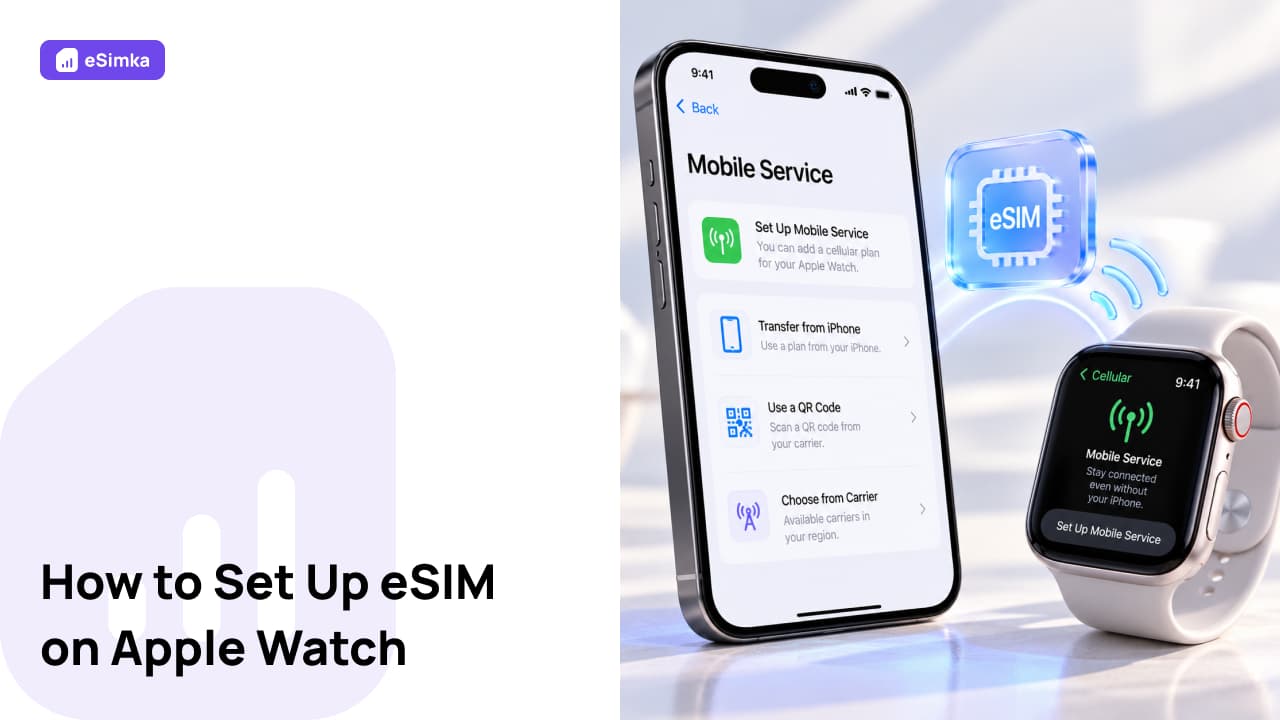
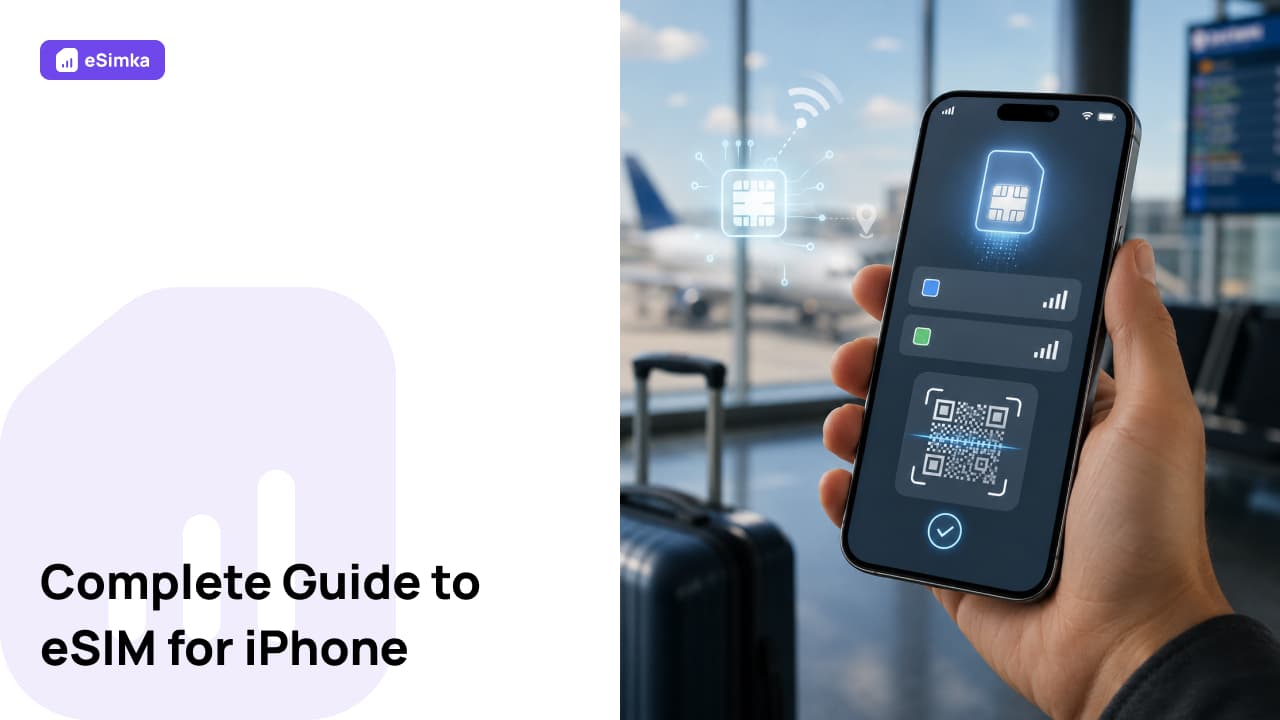
Open “Settings” — “Cellular” — “Add Cellular Plan” and scan the received code. Confirm the installation and wait for the connection status to appear in the status bar. Then select the line for data.
Quick eSIM Transfer from Another iPhone
Connect both devices to the same account and Wi-Fi, then start the transfer in the mobile network setup assistant. Select the number to move and confirm it on the old device. Wait for activation.
Transferring from a Physical SIM to an eSIM on the Same iPhone
Under “Cellular,” select the current cellular plan and start converting it into a digital profile. Follow the on-screen instructions and restart the device if prompted. Check that the internet is working.
Through the Carrier or Provider App
Install the official provider app and sign in. Select the required package and start automatic installation from the interface. Wait for the new line to appear in the list of connections.
Manual Entry: SM-DP+ Address and Activation Code
Under “Add Plan,” select “Enter Details Manually,” then paste the SM-DP+ address and code from the email. Confirm profile download and activate the line. Restart the phone if the network does not connect immediately.
Settings After Activation
Choosing the Primary Line for Calls, iMessage/FaceTime, and Data
Under “Cellular,” assign the default line for voice calls and iMessage. In “Cellular Data,” select the profile for internet access. Check that the FaceTime number matches the one you need.
Switching Lines and Managing Profiles
Rename the lines, for example “Home” and “Trip,” and enable the required one from the list. To save data, disable the unused network. Use the switch in “Cellular Data” when you need to change lines.
Data Roaming and APN Settings
When traveling, enable “Data Roaming” for the travel profile. If the internet does not connect, open “Cellular” — “Data Options” — “Cellular Network” and check the APN field according to the provider’s instructions. Save the changes and restart the device.
How Many eSIMs Can Be Added to an iPhone and How Many Work at the Same Time
Profile Limits and Simultaneous Activity by Model
The number of saved profiles depends on the model and firmware version. Usually, one or two lines can be active at the same time. Check the exact limit with the manufacturer’s support team and your provider.
Using eSIM Without a Physical SIM: Scenarios and Nuances
You can keep only a digital profile and use it as the primary line. This is convenient for travel and work numbers. Check your bank’s requirements for SMS confirmations.
How to Delete, Restore, or Transfer an eSIM to a New iPhone
Deleting an eSIM Profile
Open “Cellular,” select the profile, and tap “Delete.” Before doing this, make sure important calls and messages go to another line. After deletion, network connection stops.
Recovery After Reset or Phone Loss
Contact the provider’s support team and request reissue and a new activation code. Prepare the email address linked to the order and a document if required. Recovery is handled remotely.
Transferring eSIM When Buying a New iPhone
Use Quick Transfer during first setup or request a new profile from the provider. Check access to the old number for confirmation. After activation, test internet access and SMS.
Travel and eSIM
International eSIM for Tourists: How to Choose and Where to Buy
Choose a package by destination country, validity period, and data allowance. A small allowance is enough for messaging apps and maps; video requires more. It is convenient to connect a travel profile through the “eSimka” service.
- Select the destination country.
- Choose a suitable internet package.
- Check model support in the plan description.
- Complete the purchase and payment with 3-D Secure enabled.
- Receive the QR code or SM-DP+ details by email.
- Add the profile under “Settings” — “Cellular.”
- Assign the line for mobile data.
- Enable “Data Roaming” if necessary.
Compatibility with Local Networks and 5G Support
Operation depends on the frequency bands of the destination carrier and the capabilities of the phone’s modem. Speed and coverage vary by location and network load. Check current technology conditions with the package provider.
How to Avoid Unexpected Roaming and Double Charges
Disable “Data Roaming” on the home line and assign internet access to the travel profile. Under “Cellular Data,” check “Allow Cellular Data Switching” and disable it if you do not want automatic switching. After landing, enable Airplane Mode for 10 seconds and then reactivate the networks.
Common Problems and Solutions
eSIM Does Not Activate or Does Not Appear in Settings
Check Wi-Fi, restart the device, and update iOS. Scan the code again in good lighting or enter the SM-DP+ details manually. If this does not help, contact your provider’s support team.
No Network After Installing eSIM
Make sure the correct profile is selected for data and “Data Roaming” is enabled while traveling. Switch automatic network selection to manual and then back again. Check the APN field according to the instructions and restart the device.
Errors When Scanning a QR Code or Entering an Activation Code
Increase the screen brightness with the code or print the sheet for better recognition. Make sure the code has not expired and is entered without spaces. If errors repeat, request a new set from the provider.
Cost and Where to Buy an eSIM
Mobile Carriers vs. International eSIM Marketplaces
You can get a profile from a local carrier after arrival or in advance through an online service. The second option saves time at the airport and helps avoid queues. Check the refund and reissue conditions before payment.
What to Look for When Choosing a Plan
Check the covered countries, validity period, and data allowance. Confirm when the validity period starts — from profile activation or from the first network connection. Check current terms through the “eSimka” service before purchase.
Conclusion
You now know what eSIM is on an iPhone, how to enable the profile, and how to configure internet access while traveling. Prepare the device, choose a suitable package, and check the network settings using the checklist. Pick a convenient option for your country through “eSimka” and connect without unnecessary steps.
FAQ
Looking for an International eSIM with Calling Support?
Some travel packages include voice, while others provide data only. Check whether the selected profile supports VoLTE in the destination country and whether separate minutes are included. If voice is not needed, use messaging apps over mobile internet.
When Should You Start Installation — at Home or After Arrival?
Download the profile at home over Wi-Fi and activate the network after landing. This helps avoid early data consumption. Check which event starts the validity period — installation or first connection.
Can You Keep the Physical SIM for Banking SMS and Use Internet from Another Profile?
Yes. Keep the home line for SMS and incoming calls, and assign internet access to the travel profile. In “Cellular Data,” select the required line and enable “Data Roaming” only for that line. This reduces the risk of unexpected charges.
How Do You Know How Much Data to Choose for One Week?
A small package is usually enough for maps and taxi apps, while social media requires a larger allowance. Video and video calls consume megabytes quickly, so plan with a buffer. Check available allowances and extension terms with the provider.