Can You Share Internet from an eSIM: How to Use a Smartphone as a Hotspot
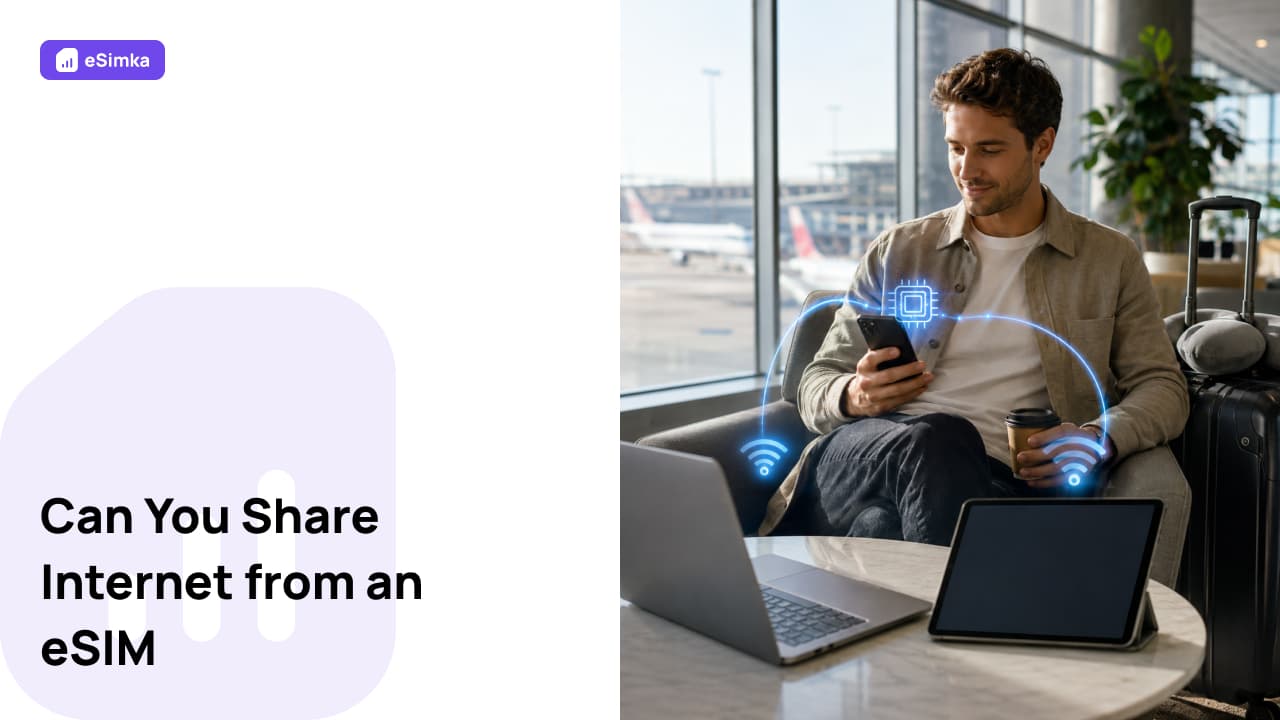
The brief answer is yes, you can. Sharing internet from an eSIM usually works the same way as with a regular SIM card, but much depends on the plan, device settings, and carrier restrictions. In this guide, you will find step-by-step instructions, a verification checklist, and an explanation of common reasons why hotspot mode does not start on some models.
In Brief: What You Need to Know
- Check whether tethering is allowed under the plan terms: restrictions are found with some providers and local carriers.
- On iPhone, “Personal Hotspot” appears after selecting the profile for cellular data and setting the correct APN.
- When traveling, enable data roaming for the installed profile; otherwise, the connection will not start.
- Speed depends on location, cell tower congestion, network type, and smartphone model.
- Hotspot mode drains the battery faster, so enable power saving and set a WPA2/3 password.
- On Android and iOS, connection is available via Wi-Fi, and sometimes via USB and Bluetooth — choose the most convenient method.
What eSIM and a Mobile Hotspot Are
The built-in mobile module stores a digital profile instead of a physical card. It is added in the settings using a QR code or file. A smartphone can share traffic with a laptop and other devices by creating a protected network with a password. This is convenient during trips and business travel when there is no reliable Wi-Fi nearby and you need quick access to work services.
Can You Share Internet from an eSIM in Practice?
In most cases, sharing is available without additional steps if the plan does not restrict data transfer to other devices. Some providers block tethering, apply speed limits, or charge extra. Check the plan conditions, paying attention to the hotspot usage section and compatibility with iPhone and Android.
Who eSIM Is Suitable For
- Travelers who need to connect a laptop for a couple of hours at an airport or hotel.
- Families when a child’s tablet needs navigation and messaging on the road.
- Freelancers working away from home: quick access to corporate email, CRM, and video calls.
- Drivers and guides who need to run maps and music on the car’s head unit.
How to Choose an eSIM Plan
Estimate the length of your trip and the approximate amount of data required for your tasks. Maps and navigation use around 50–150 MB per hour, messaging apps use 10–30 MB, social media feeds use 100–300 MB, SD video uses 300–700 MB per hour, and HD video uses from 1 to 3 GB. Check the package validity period, extension options, and whether hotspot use is allowed.
How to Connect an eSIM Through “eSimka”
- Select the country or region of your trip on the service website.
- Choose a suitable internet package by validity period and data allowance.
- Check whether your smartphone supports a built-in profile under “Settings” — “Cellular” or “Network.”
- Complete the connection process, enable 3-D Secure, and increase your online payment limit in the banking app if necessary.
- Receive the QR code or profile installation details at the specified email address.
- Add the digital line in the device settings by scanning the code.
- Assign the new profile as the cellular data source in the SIM manager menu.
- When traveling, enable data roaming for this line so the network can be found abroad.
How to Install an eSIM on a Smartphone
iPhone (iOS): Personal Hotspot on eSIM
Open “Settings” — “Cellular” — “Add eSIM,” scan the QR code, and wait for installation to complete. Assign a label to the line, select the new line under “Cellular Data,” then open “Personal Hotspot” and enable the network by setting a password. If APN details are requested, enter the parameters from the profile provider’s instructions.
Android: Enabling Hotspot
Open “Settings” — “Network & Internet” — “SIM Cards” and activate the added profile for data transfer. Open “Hotspot & Tethering,” enable Wi-Fi sharing, and set a network name with a WPA2/3 password. If necessary, enter the APN under “Access Point Names,” then restart the hotspot.
What to Check After Arrival
- Whether data roaming is enabled for the active line in the SIM manager menu.
- Whether automatic network selection is enabled and the preferred mode is 4G/5G, if available in the region.
- Whether the time and time zone have updated, otherwise network authorization may be delayed.
- Whether the APN matches the instructions, and the type is default,supl, possibly dun if required.
- Whether Airplane Mode is off and the mobile data switch is enabled.
What to Do If the eSIM Does Not Work
- Check that the profile is enabled and selected for mobile traffic.
- Enable data roaming if you are outside Russia or in another country.
- Turn Airplane Mode off and on for 10–15 seconds to refresh network registration.
- Restart the smartphone, then enable the hotspot again.
- Check automatic network selection or manually select a local carrier.
- Compare the APN with the instructions, save it, and restart hotspot mode.
- Remove the physical SIM card if it interferes with data prioritization.
- Contact “eSimka” support and attach screenshots of “Carrier,” “APN,” and “Network Status.”
Restrictions and Special Features
Some providers prohibit tethering or reduce the speed after a certain data allowance. In the plan description, look for terms such as tethering and fair use, as well as mentions of extra charges. On iPhone, the “Personal Hotspot” option disappears when the APN is incorrect or the carrier blocks it, which is why users ask why this mode does not work on eSIM.
Alternatives: Router with eSIM and eSIM Modem
Some mobile routers can work with built-in profiles, but many models accept only physical cards. Before purchase, check the specifications: eUICC support, profile support, and local frequency bands. A USB modem with a laptop is convenient in an office, but while traveling, a smartphone hotspot is often more practical and faster to set up.
Quick Checklist Before Sharing Internet
- The plan allows tethering, and there is no hotspot ban in the description.
- The line is selected as the mobile data source, and roaming is enabled when traveling abroad.
- APN and hotspot password are set, and the encryption type is WPA2/3.
- The battery is charged; take a USB-C/Lightning cable or a power bank.
- Limit the number of connected devices and disable unnecessary background updates.
FAQ
Can You Share Internet from an eSIM on iPhone, and Are There Any Differences from a Physical SIM?
Yes, you can. The process is the same: select the line for mobile data and enable “Personal Hotspot.” The differences come down to installing the profile through a QR code and the need for correct APN settings. If the option disappears, check the settings or plan restrictions.
Why Does “Personal Hotspot” Not Work on eSIM, and How Can You Fix It?
Common reasons include a plan that prohibits tethering, an incorrect APN, the profile not being selected for data transfer, or data roaming being disabled. Update the APN, restart the device, check network selection, and enable the hotspot again. If it still does not appear, check the plan terms and contact support.
How Many Devices Can Be Connected to the Hotspot at the Same Time?
Usually, 5 to 10 devices can be connected, but the exact number depends on the phone model and system version. More clients mean higher load and more heat. For stability, limit the number of devices and disconnect unused sessions.
Does Internet Sharing Work When Traveling Abroad, and Do You Need to Enable Data Roaming?
Yes, if the settings are correct and the local network is available. Enable data roaming for the active profile, keep automatic network selection enabled, and switch carriers manually if necessary. The package validity period begins according to the plan terms: either from activation or from the first connection to the network.
Can You Use eSIM in a Mobile Router or USB Modem?
It depends on the model. Some routers support built-in profiles, but many work only with physical SIM cards. Check the technical specifications: eUICC availability, profile compatibility, and required frequency bands.
How Do You Share Internet from eSIM on iPhone If “Personal Hotspot” Is Missing?
Set the APN under “Cellular Data,” restart the device, and open the hotspot section again. Check that the line is selected as the traffic source and that roaming is enabled while traveling. If the option is still hidden, the restriction may come from the plan.
Conclusion
Sharing internet from an eSIM is possible and practical while traveling, at home, and in the office, provided that the plan and settings are correct. Check whether tethering is allowed, set the APN, enable roaming while traveling, and protect the network with a password. Choose a convenient package and connect the profile through “eSimka” so you can use hotspot mode comfortably on any device.