How to Save Mobile Data When Traveling Abroad in 2026
Abroad, every megabyte can cost several times more than it does on your home plan. By adjusting your system settings, you can save a significant amount of mobile data and avoid unnecessary expenses during your trip.
Analyzing Data Usage: How to Find Out Where Your Gigabytes Go
Even with the screen off and the phone in your pocket, your smartphone continues to consume data from your mobile plan. Background services, automatic app updates, and cloud synchronization can quietly use up your gigabytes.
Checking Data Usage Statistics on iOS and Android
Built-in monitoring tools let you identify which apps use the most mobile data. On an Apple smartphone, open the cellular settings and scroll down to the list of installed apps. You will see detailed data usage for each service over the selected period.
On Android devices, open the network settings and find the data usage section. Depending on the smartphone manufacturer, including Samsung, this section may be called “Data Usage.” Sort the list by volume to immediately identify the apps consuming the most data.
Setting Data Usage Warnings and Hard Limits
On Android, you can set a strict daily or monthly data limit to restrict mobile internet usage. Specify a threshold in megabytes: the device will warn you as you approach it and disable network access once the limit is reached. This measure protects your prepaid data allowance from accidental background downloads of large files.
Essential Smartphone Settings for Maximum Data Savings
Modern phone operating systems include built-in tools for optimizing network traffic. A properly configured basic setup can quickly reduce data consumption while roaming.
Enabling Data Saver in the Operating System Settings
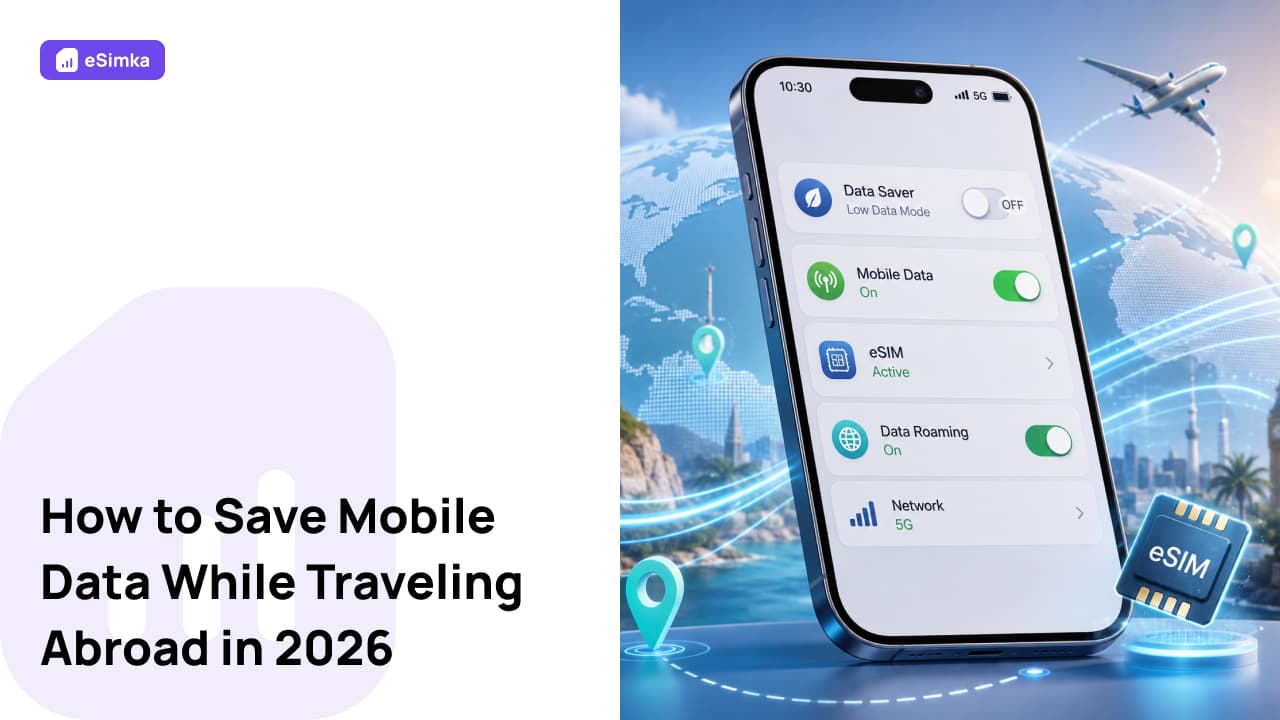
Let's look at what Data Saver is on a phone and why you should enable it before your flight. This option prevents apps from sending and receiving data in the background. On Android, Data Saver can be enabled with a single toggle in the connection settings: the system compresses images in system services and stops background requests.
Data Saver on iPhone works similarly: open the cellular settings, go to the data options, and enable Low Data Mode. In this state, iOS delays backups and reduces media streaming quality.
Disabling Background App Refresh and Automatic iCloud and Google Drive Sync
Cloud services automatically upload new photos and videos as soon as you take them. Disable automatic synchronization in Google Photos, Yandex Disk, and iCloud when using a cellular network. Keep synchronization enabled only over a trusted Wi-Fi connection at your hotel.
Preventing Automatic Updates in the App Store and Google Play
App stores regularly download patches that can be hundreds of megabytes in size. Open your profile in Google Play or the App Store, go to the download settings, and select the option to download updates over Wi-Fi only. Also disable automatic video previews on software catalog pages.
Optimizing Data Usage in Popular Apps
Apps require individual adjustments. Messaging apps and streaming services can consume data faster than system services if their media settings remain at their default values.
Disabling Autoplay and Automatic Media Downloads in Telegram, WhatsApp, and Max
A messaging app downloads incoming voice messages, large video files, and video messages directly during a conversation. Open the Data and Storage menu in Telegram: completely disable automatic downloads over cellular networks and turn off autoplay for videos and GIFs. In WhatsApp and Max, follow the same procedure by preventing photos and videos from being automatically saved to your device's storage.
Reducing Streaming Audio and Video Quality in YouTube, Spotify, and Kinopoisk
High-resolution streaming can use up to three gigabytes during a single hour of watching a movie. In the YouTube app, open the video quality settings and select a data-saving option for mobile networks. In Spotify and Kinopoisk, manually lower the streaming bitrate to the standard level so you can listen to music and watch content without using excessive amounts of data.
Using Built-In Data Compression and Tracker Blockers in Mobile Browsers
Web pages are overloaded with analytics scripts and banners that consume mobile data every time you follow a link. Browsers such as Opera and Brave block third-party trackers and compress web pages before displaying them. Enable the built-in ad blocker in your mobile browser to reduce the amount of data downloaded by web pages by one-third.
Preparing Useful Services for Offline Use Before Your Flight
Preparing your smartphone at home in advance will save you from having to connect to the internet for every everyday task while exploring a new city.
Downloading Offline Maps in Google Maps, Yandex Maps, and Organic Maps
Navigation uses a noticeable portion of your data allowance by loading map sections in real time. Download the regions you need in advance using your home router. In Google Maps, select the offline maps option, choose the city area, and save it to your phone's internal storage. Maps in Organic Maps and Yandex Maps work entirely offline after downloading and can find addresses without a cellular connection.
Saving Offline Dictionaries, Translator Language Packs, and Travel Documents
Google and Yandex translation apps support offline use. Open the dictionary settings and download the language packs for the countries you need to your device. Save transport tickets, hotel bookings, and insurance policies as PDF files or screenshots in a separate local folder.
Downloading Playlists, Movies, and Podcasts Over Wi-Fi
Don't use mobile internet to search for entertainment while traveling. Download audiobooks, playlists, and TV show episodes to your smartphone before leaving home. On the road, switch your media players to offline mode so streaming platforms don't try to update recommendation lists over the cellular network.
Choosing Affordable Roaming Data: The Benefits of eSIM Technology
Understanding how to save gigabytes of internet data helps you stay within your chosen plan's allowance. However, the type of connectivity you choose in the first place determines the final cost of each megabyte during your trip.
Comparing the Cost per Gigabyte: Home Carrier Roaming, Local SIM Cards, and eSIM
Roaming through your home carrier usually involves a fixed daily fee and a strict speed limit after the first few hundred megabytes. Buying a physical SIM card at the airport means waiting in line and having a passport and knowledge of the local language. An eSIM can be activated remotely: you choose the required amount of data at a fixed price without hidden fees.
How to Calculate the Data Allowance You Need for Your Trip
Maps, taxi bookings, and messaging use around 500 MB per day. If you plan to upload photos to social media and read the news, choose a plan with around 1–1.5 GB per day. For longer trips, plans offering 10–20 GB or unlimited data for the entire period are more practical.
Step-by-Step Guide to Installing and Activating an eSIMka Digital Profile
The travel eSIM platform eSIMka lets you connect to the internet in 150+ countries without visiting a mobile carrier store. Setting up the service takes just a few steps:
- Open the eSIMka website and select a specific country or regional plan.
- Pay for your chosen plan using a Russian bank card.
- Within a couple of minutes, you will receive an email containing the profile's QR code.
- Open the cellular network settings on your device, tap “Add eSIM,” and scan the code from the email.
You don't need to remove your physical SIM card: it will continue to receive bank SMS messages while mobile data runs through the eSIMka profile.
Configuring Data Settings to Prevent Unexpected Charges
After installation, select your travel eSIM as the primary source of mobile data in the cellular data menu. On supported devices, it's important to turn off “Allow Cellular Data Switching” so your phone doesn't switch to your home carrier's roaming service when the signal is weak. Disable “Data Roaming” for your home number, but enable it for the new eSIM.
Frequently Asked Questions (FAQ)
Does Low Power Mode Affect Data Usage?
Yes, Low Power Mode can noticeably reduce mobile data consumption. In this mode, the smartphone starts restricting background data transfers, disabling automatic email checks, pausing photo uploads, and allowing apps to access the network less frequently.
Do Ad Blockers Help Reduce Mobile Data Usage?
Ad blockers can significantly reduce data consumption while browsing the web. Banners, embedded videos, and analytics trackers can account for up to 40% of the total size of an opened web page. Filtering these scripts speeds up website loading and helps conserve your paid data allowance.